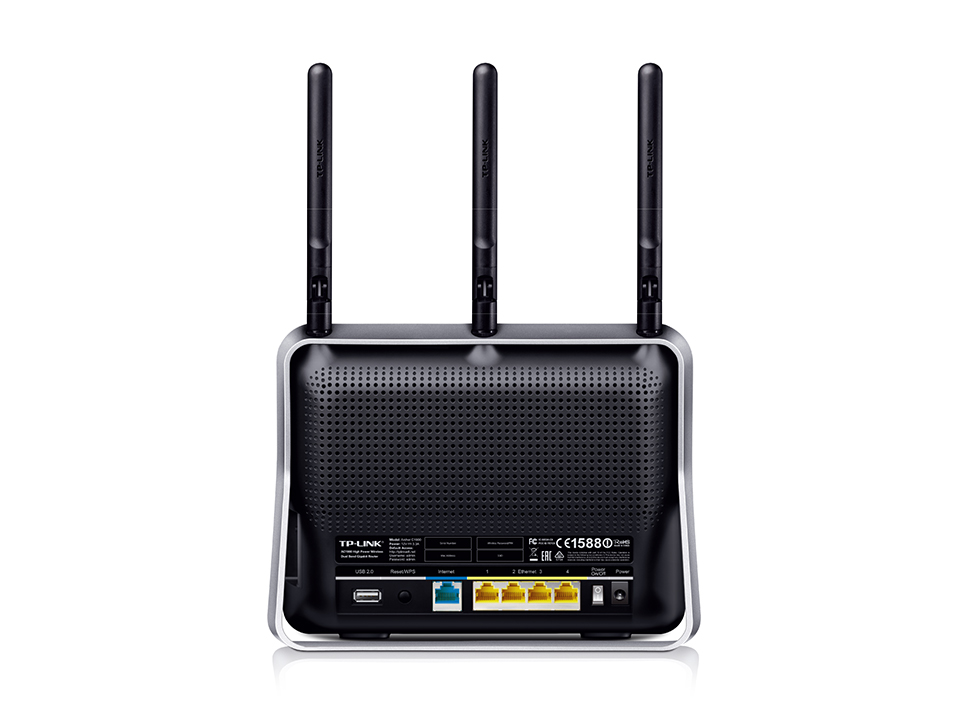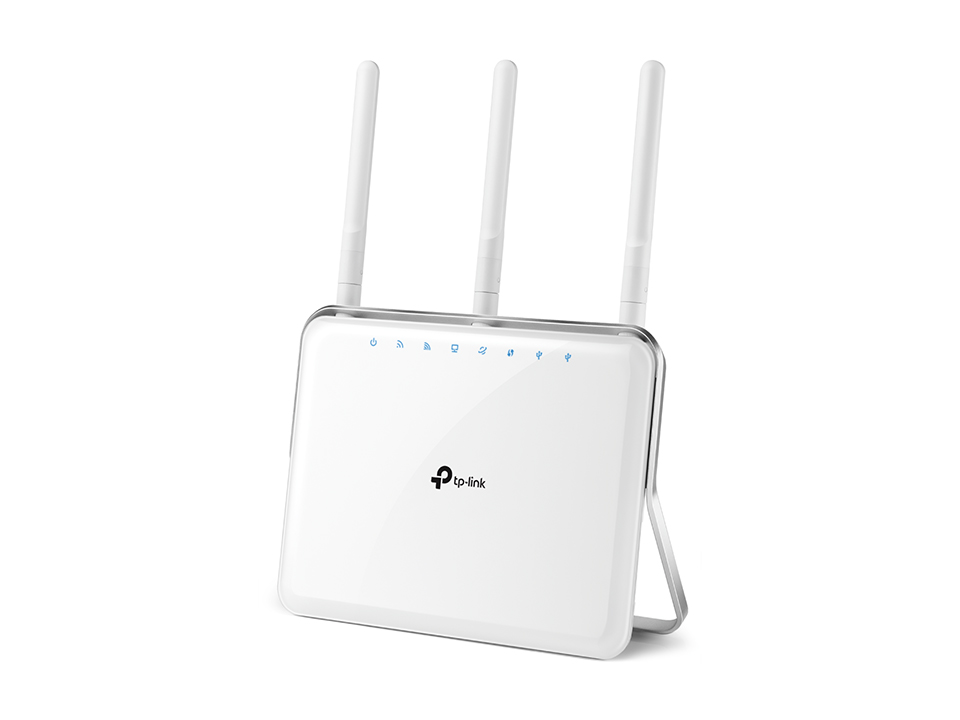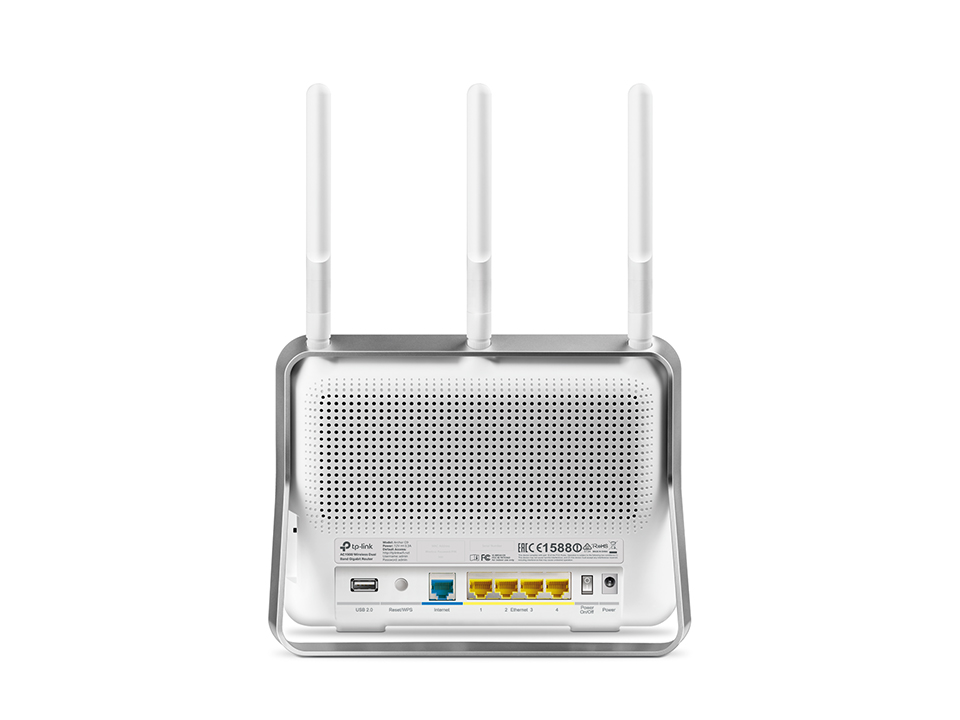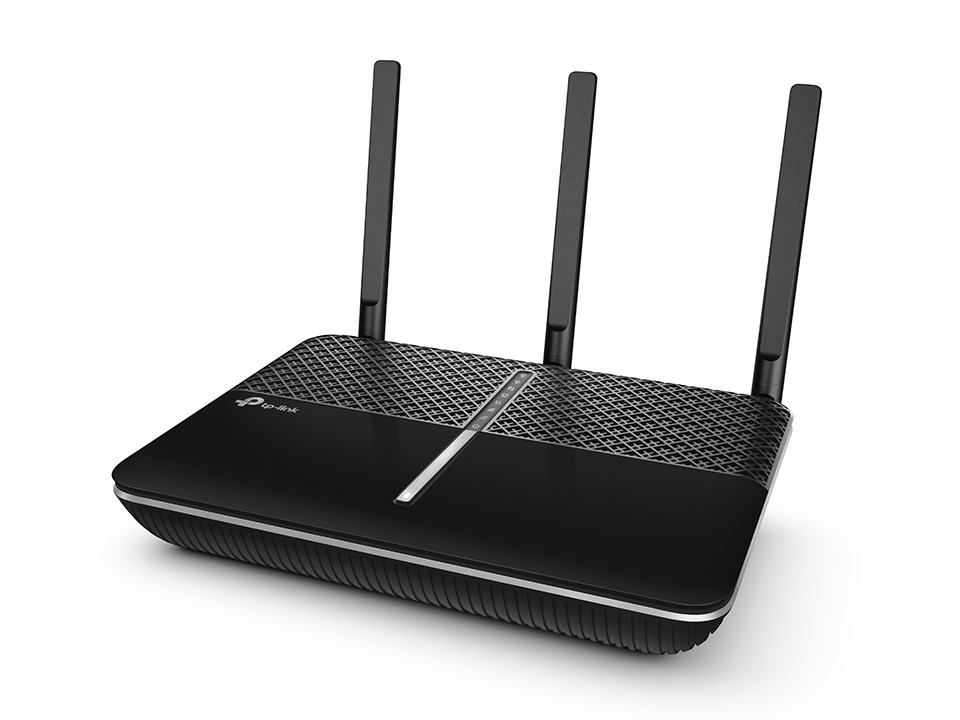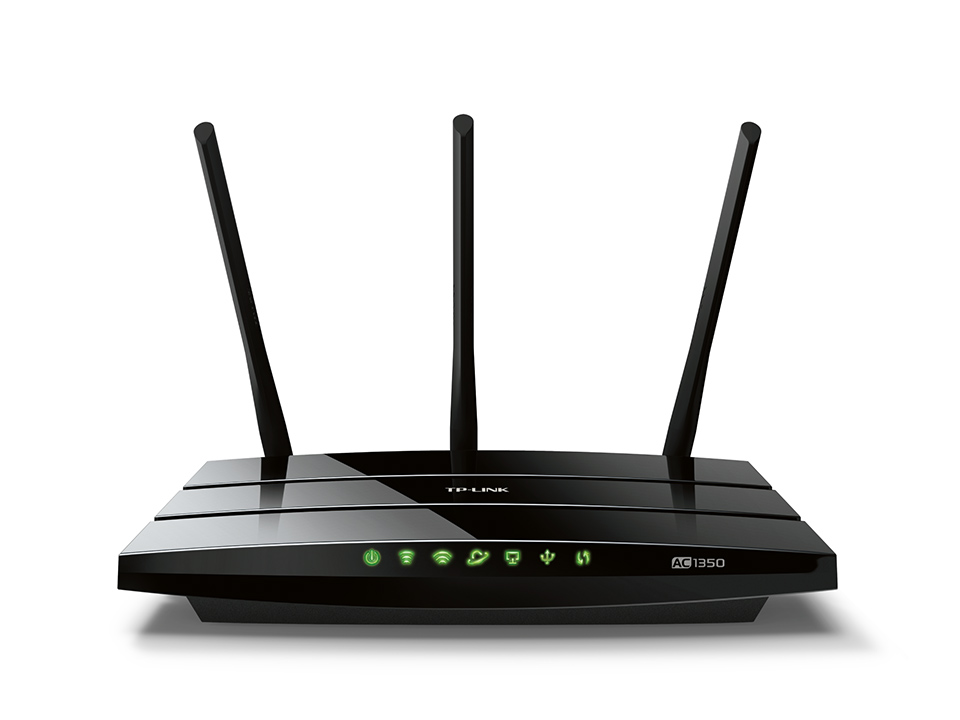
Hard reset TP-LINK AC1350 / Archer C59

The Reset button (hole) is on the back panel of the router. Press and hold (use a paper clip) for more than 5 seconds, release and wait for a couple of minutes while the router resets. Visit http://tplinkwifi.net to create a new login password.

To find out your router default username and password continue reading
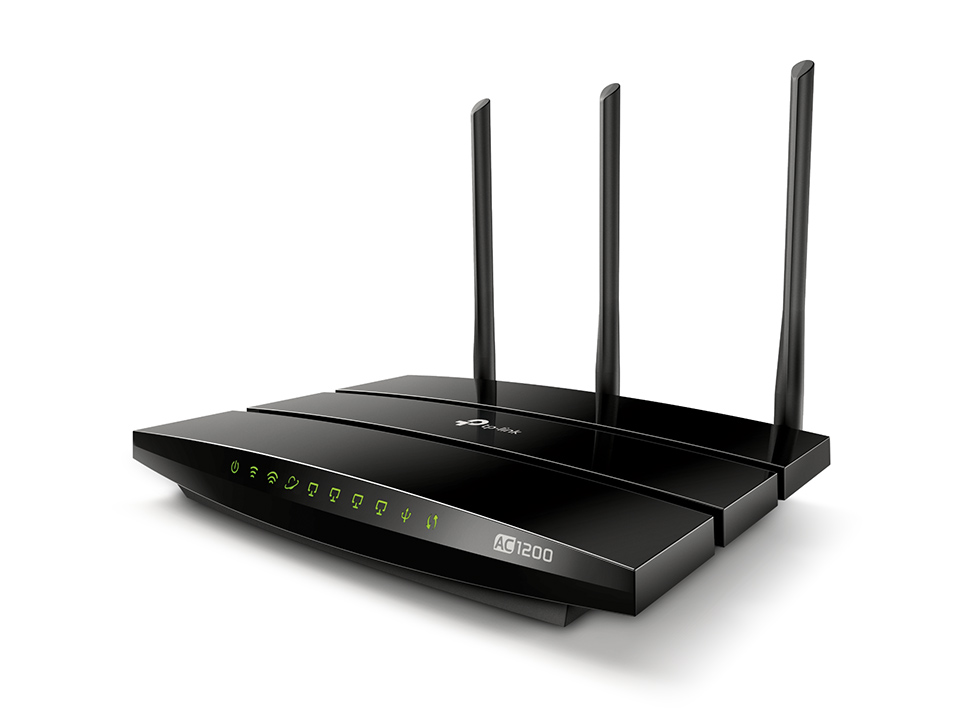
Hard reset TP-LINK Archer C1200

The Reset button (hole) is on the back panel of the router. Press and hold (use a paper clip) for more than 5 seconds, release and wait for a couple of minutes while the router resets. Visit http://tplinkwifi.net to create a new login password.

To find out your router default username and password continue reading
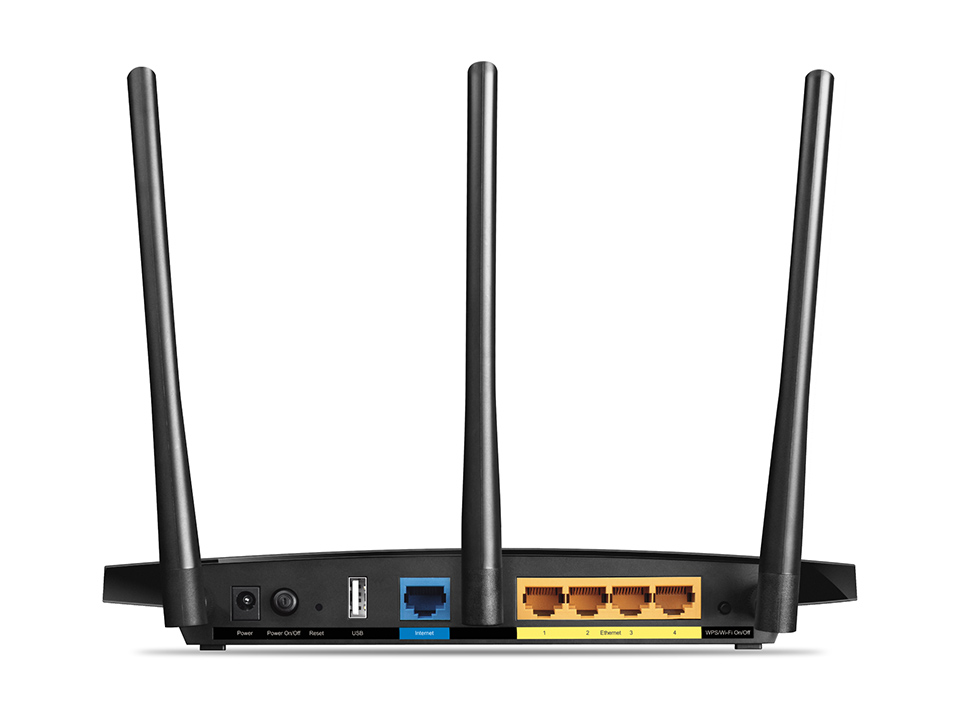
Hard reset TP-LINK AC1750 / Archer C7

Turn on the router and locate the reset button (hole) on the back panel. Press and hold (use a paper clip) for more than 5 minutes and the router will reset. Visit http://tplinkwifi.net to create a new login password.

To find out your router default username and password continue reading
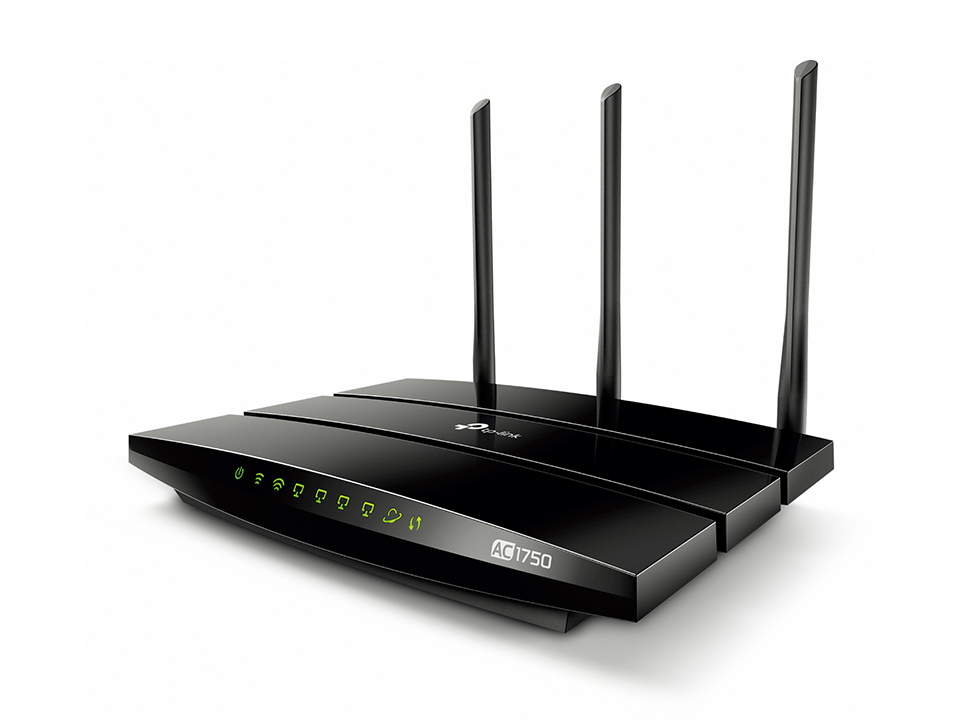
Hard reset TP-LINK AC1750 / Archer C8

The Reset button is on the back panel of the router. Press and hold it for more than 5 seconds, release and wait for a couple of minutes while the router resets. Visit http://tplinkwifi.net to create a new login password.

To find out your router default username and password continue reading
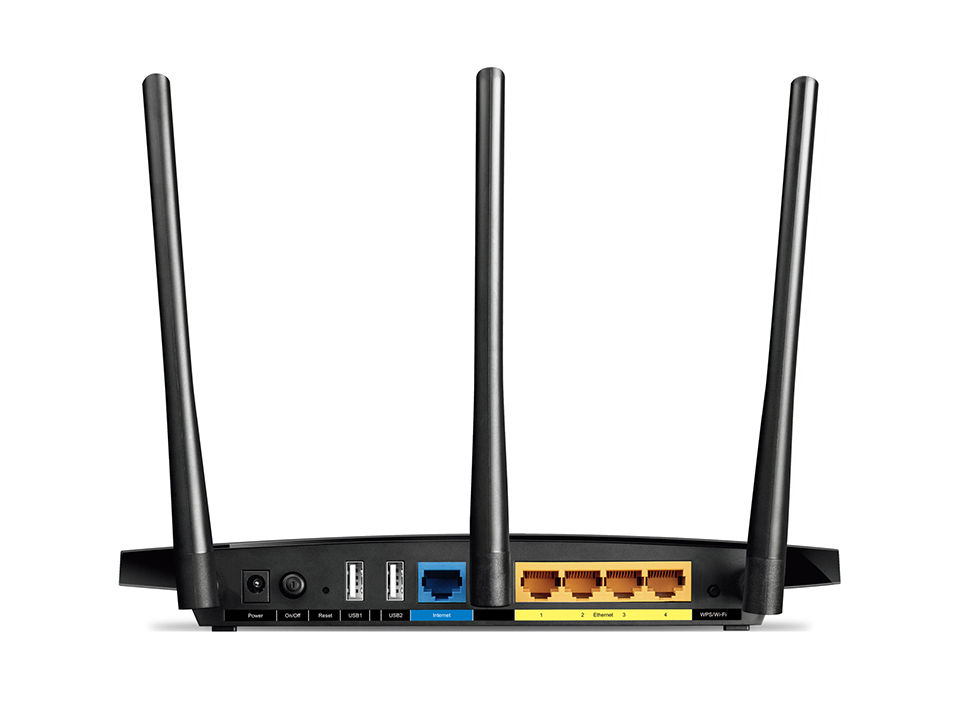
Hard reset TP-LINK AC1750 / Archer A7

The Reset button (hole) is on the back panel of the router. Press and hold (use a paper clip) for more than 5 seconds, release and wait for a couple of minutes while the router resets. Visit http://tplinkwifi.net to create a new login password.

To find out your router default username and password continue reading

Hard reset TP-Link AC1900 / Archer C1900

The Reset button is on the back panel of the router. Press and hold it for more than 5 seconds, release and wait for the router to reset. Visit http://tplinkwifi.net to create a new login password.

To find out your router default username and password continue reading

Hard reset TP-LINK AC1900 / Archer C9

Turn on your router and locate the WPS/Reset button on the back panel. Press and hold this button for more than 5 seconds to reset the router to its factory default settings. Visit http://tplinkwifi.net to create a new login password.

To find out your router default username and password continue reading
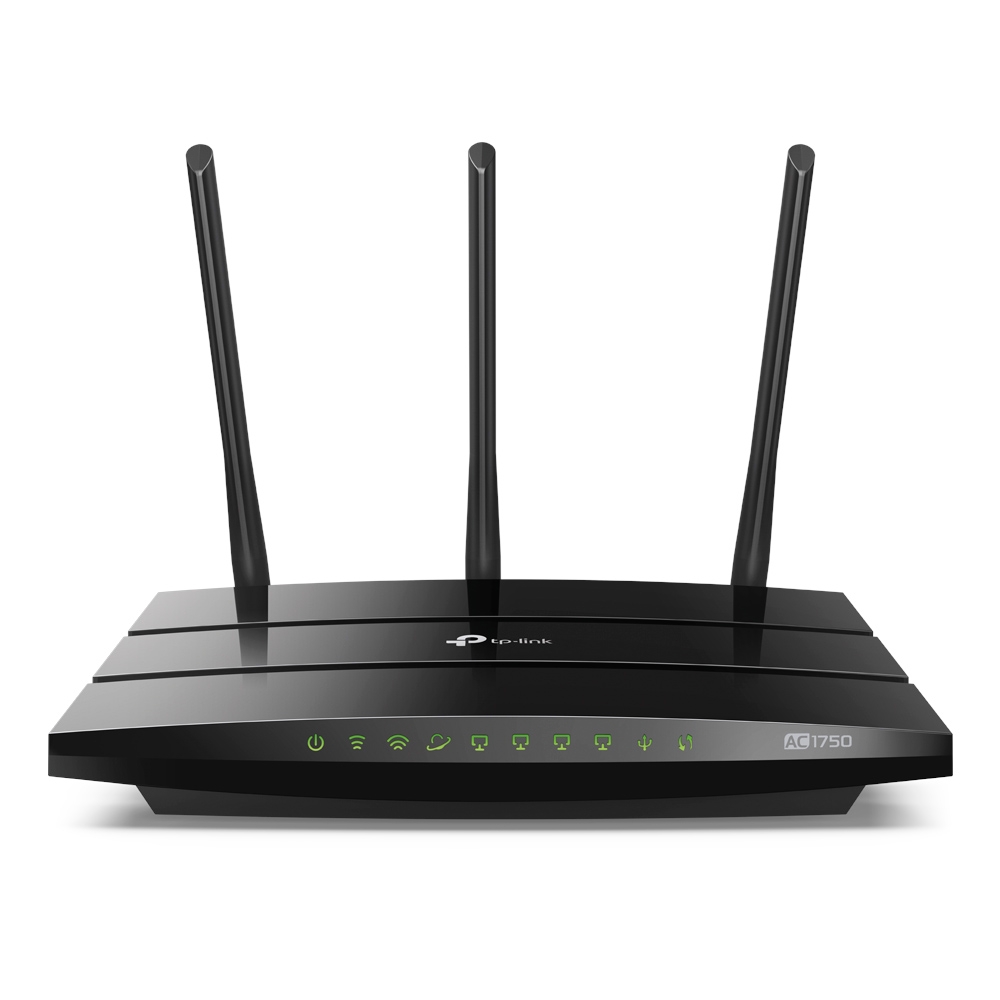
Hard reset TP-LINK Archer AC2300

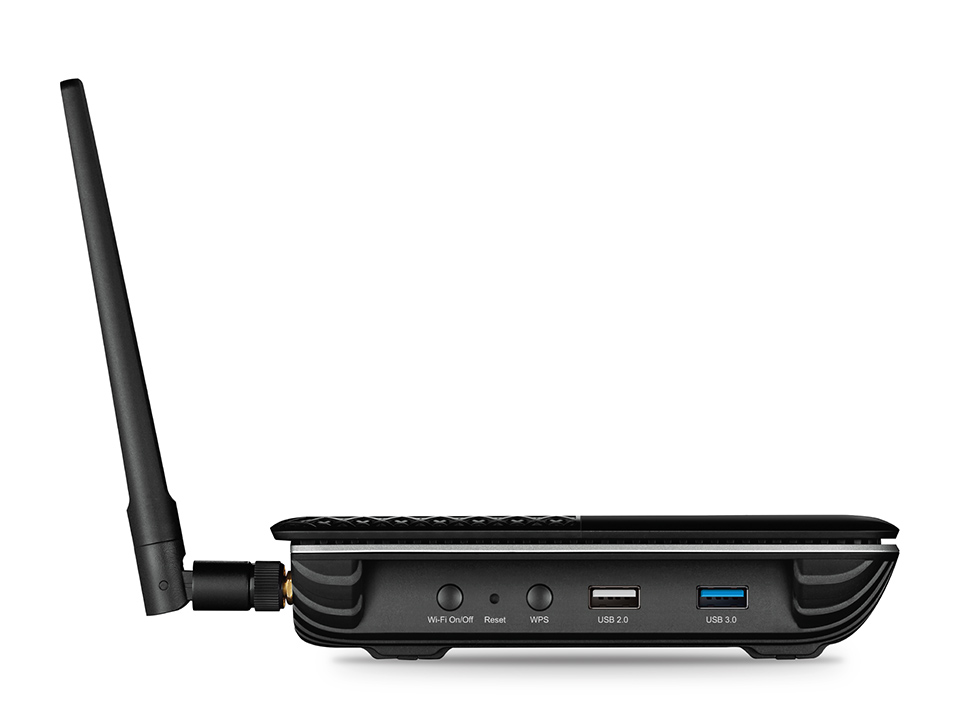
The Reset button (hole) is on the side panel of the router. Press and hold (use a paper clip) for more than 5 seconds until the Power LED binks and the router resets. Visit http://tplinkwifi.net to create a new login password.

To find out your router default username and password continue reading
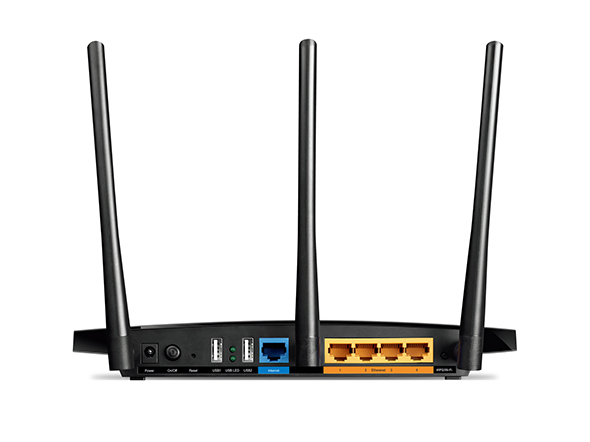
Hard reset TP-LINK Archer C3150 V2

Power on the router and locate the Reset button (hole) on its side panel. Press and hold (use a paper clip) for more than 5 seconds until all LEDs light on (wireless LEDs may not light on if the WiFi on/off button is off). Release the button and wait the router to reboot. Visit http://tplinkwifi.net to create a new login password.

To find out your router default username and password continue reading
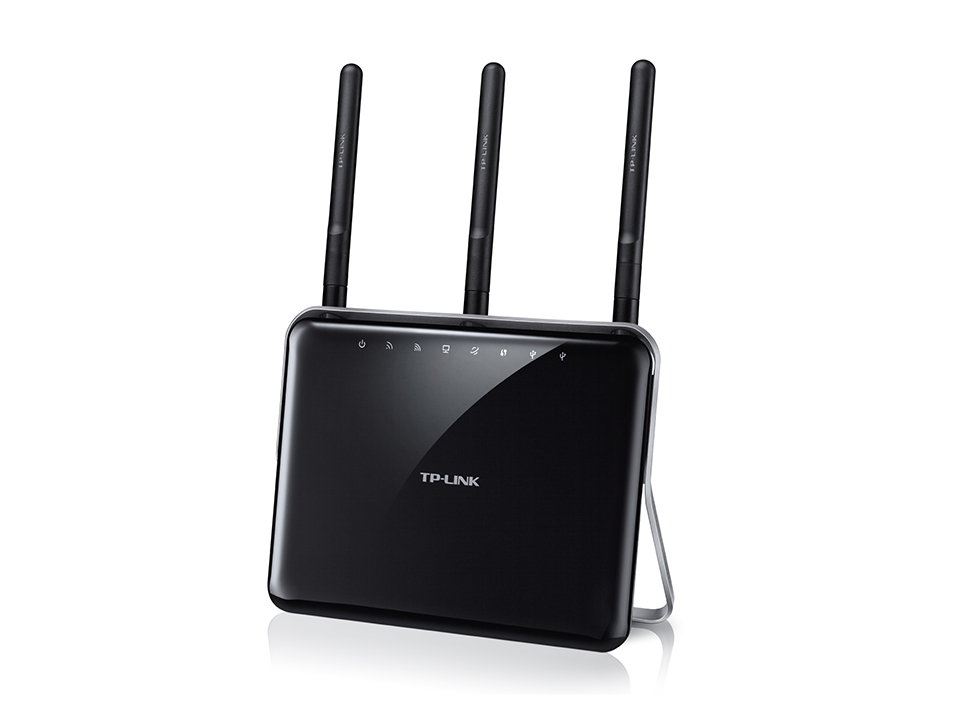
Hard reset TP-LINK Archer AC4000

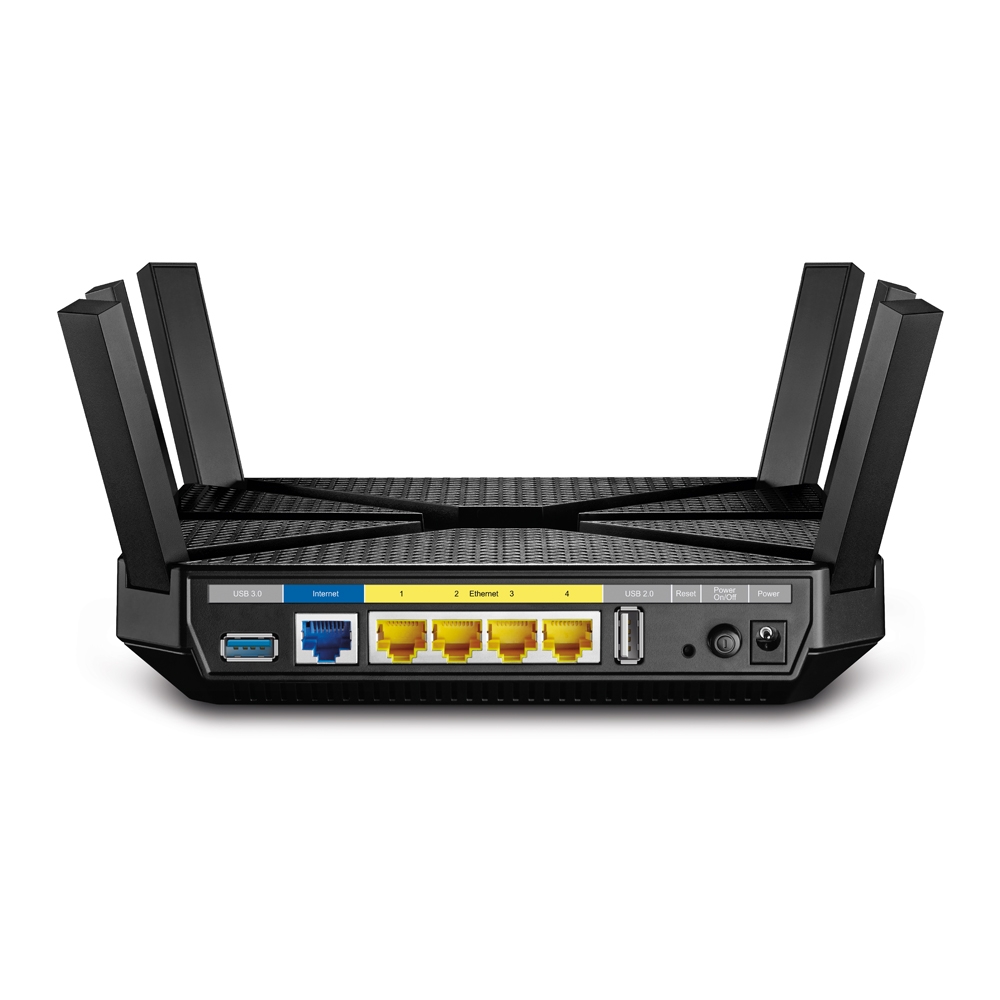
The Reset button (hole) is on the back panel of the router. Press and hold (use a paper clip) for more than 5 seconds until the Power LED binks and the router resets. Visit http://tplinkwifi.net to create a new login password.

To find out your router default username and password continue reading