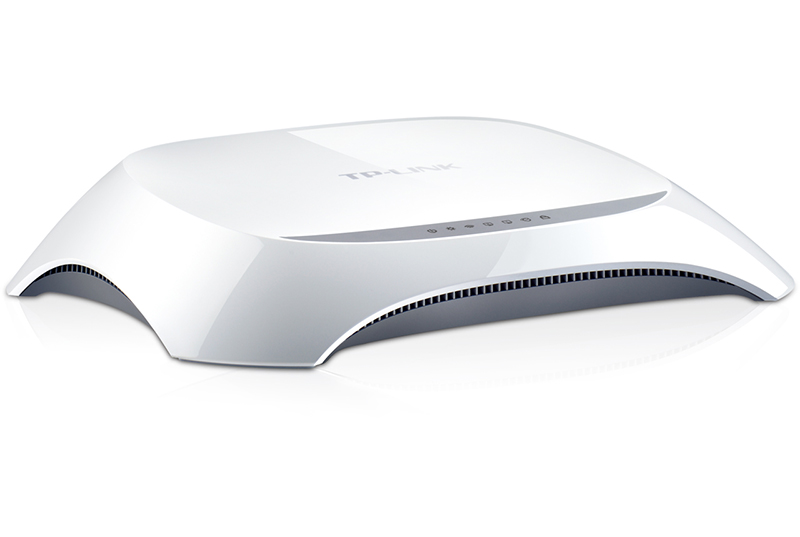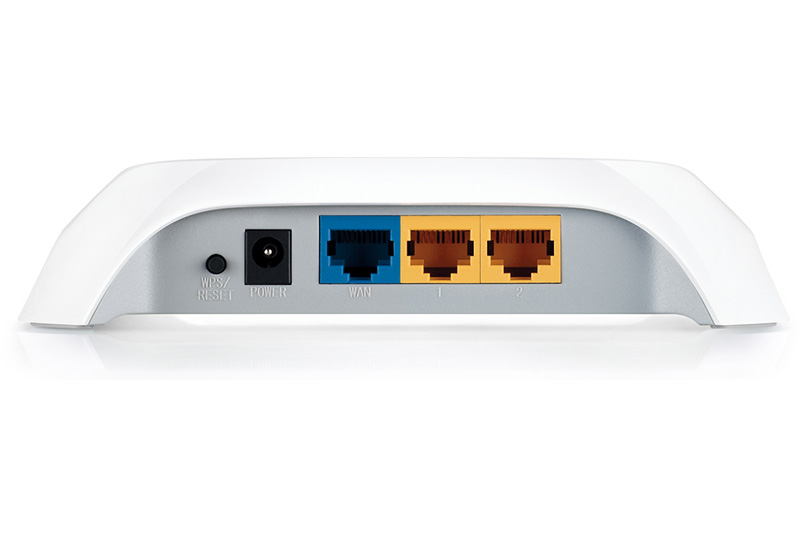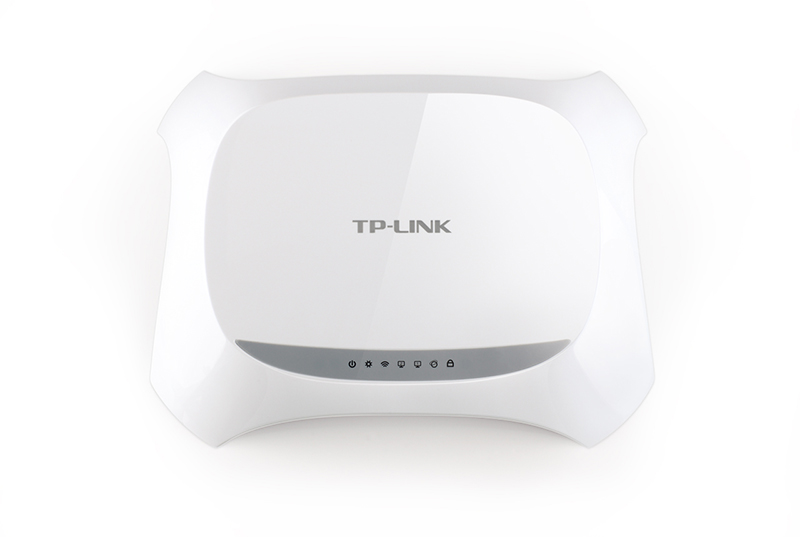
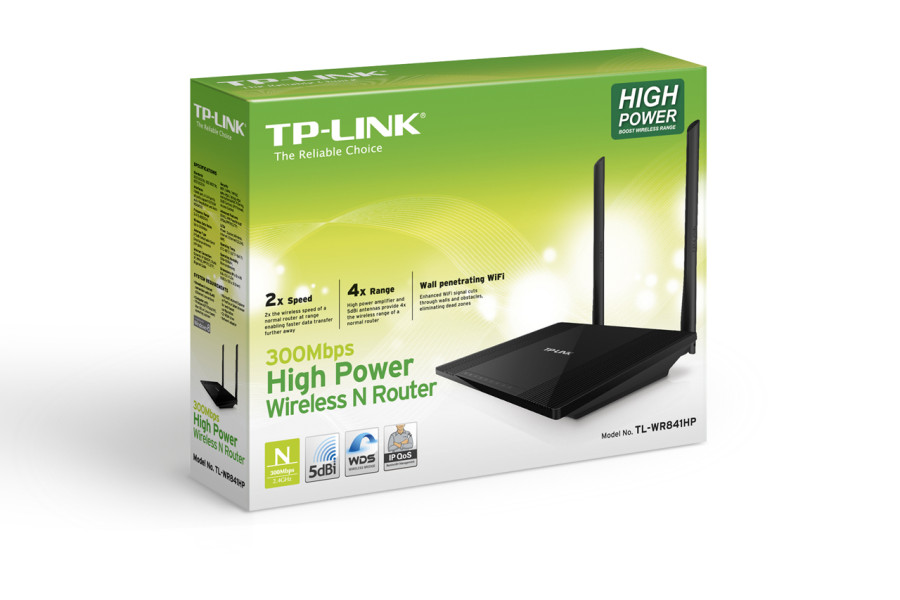
Hard reset TP-LINK TL-WR841HP

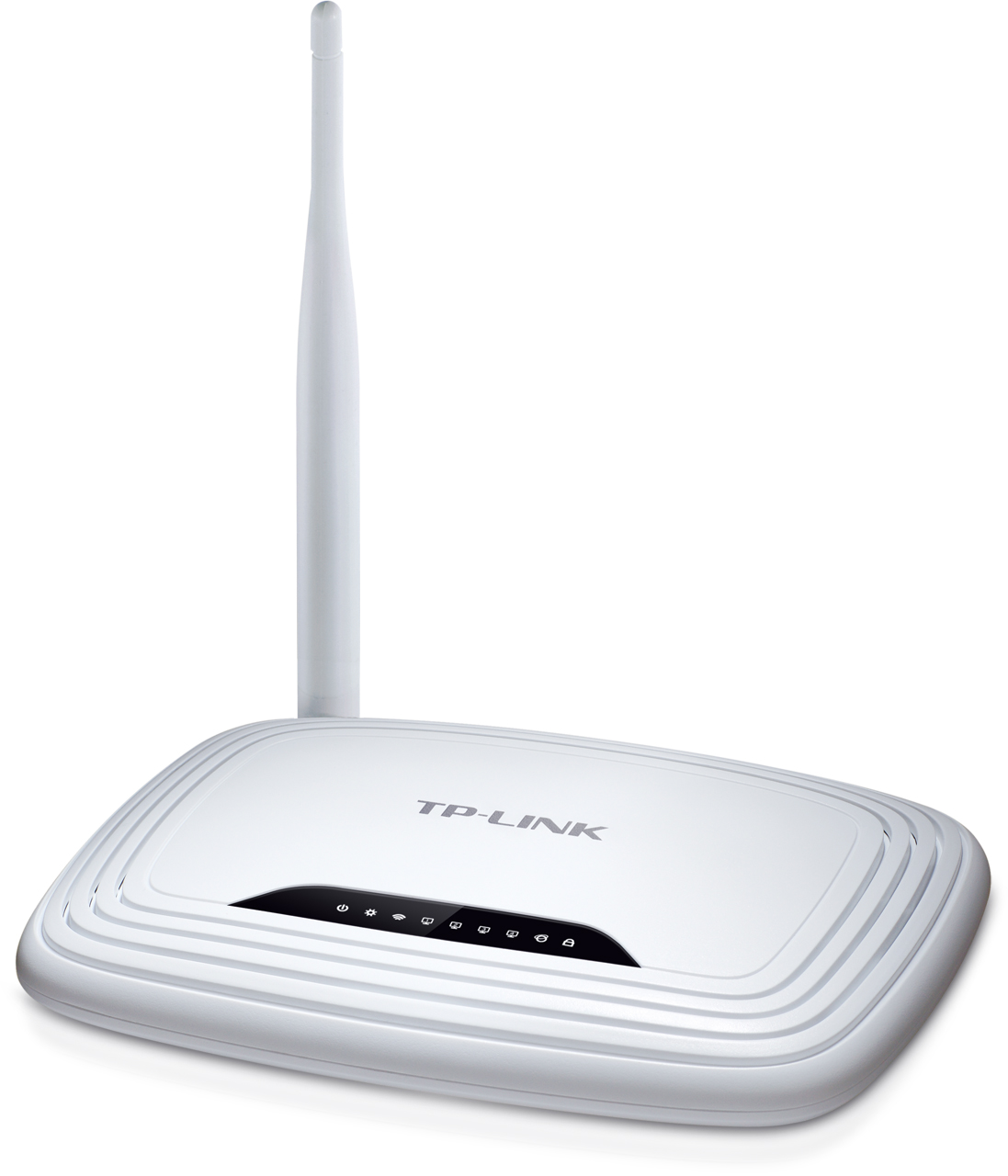
Power ON the router. Locate the WPS/RESET button on the back panel of the device. Press and hold the button for more than 5 seconds. Keep an eye on the system LED and when it starts flashing more quickly than before – release. Wait for the router to reboot.  
PS. The system LED is the second led on the front panel – it is right next to the power LED.

To find out your router default username and password continue reading

Hard reset TP-LINK TL-WR710N

Power ON the router and locate the reset button hole on the bottom of the device. Use a pin to press inside the hole and hold for about 5-6 seconds. Keep an eye on the blue LED on the side of the router – release the reset button when the LED starts blinking. Wait for the router to reboot – when it’s ready to use the LED will stop blinking.

To find out your router default username and password continue reading

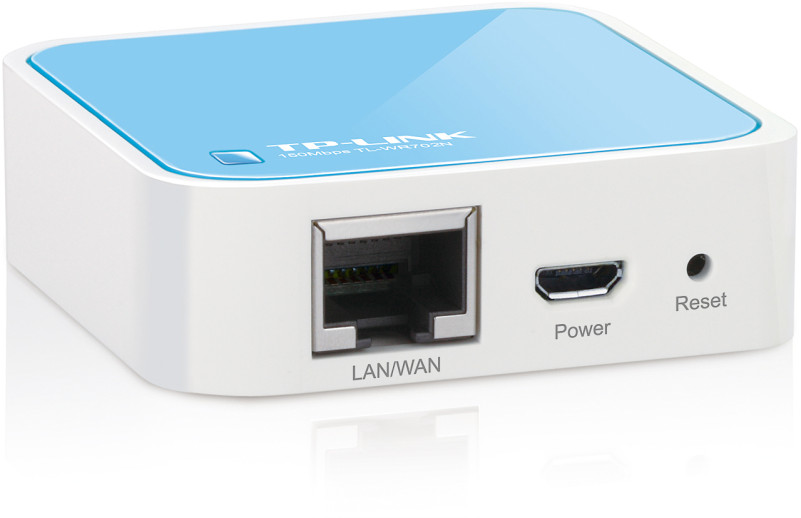
Hard reset TP-LINK TL-WR702N

Power ON the router. The reset button hole is located on the bottom of the device. Use a thin object like a pin to press inside and hold for about 5-6 seconds. Release and wait about 1 minute for the router to reboot and go back to the factory defaults.

To find out your router default username and password continue reading

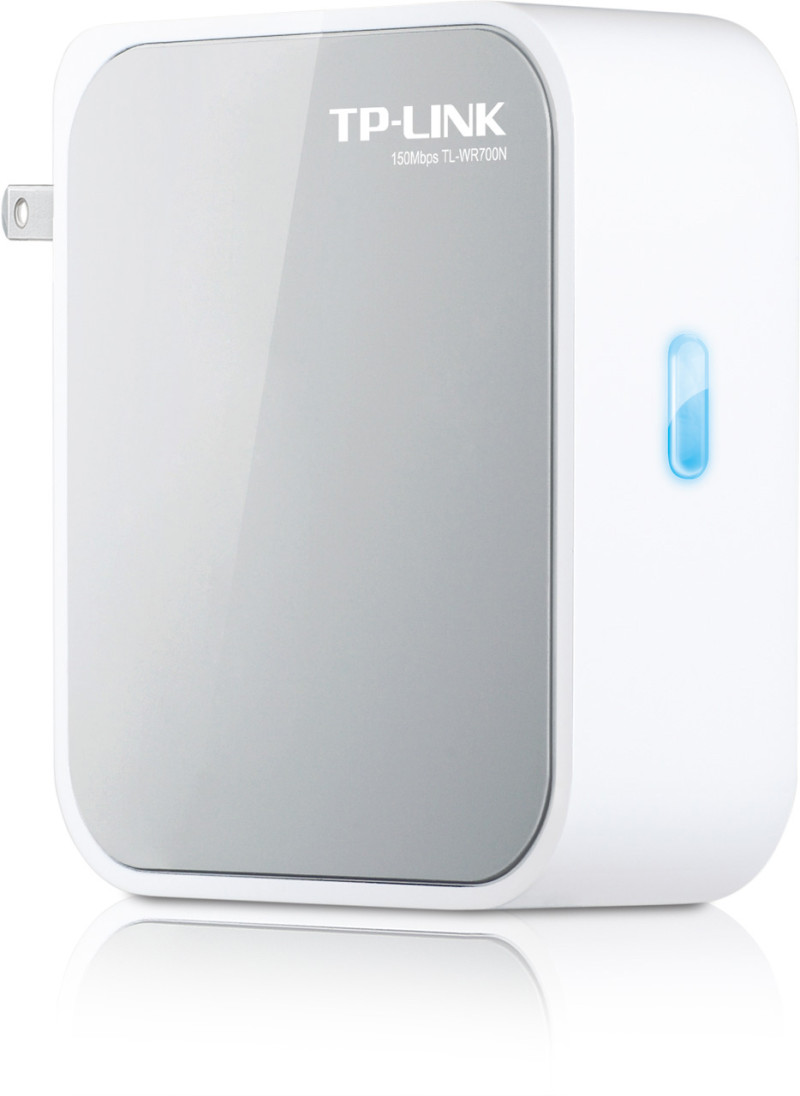
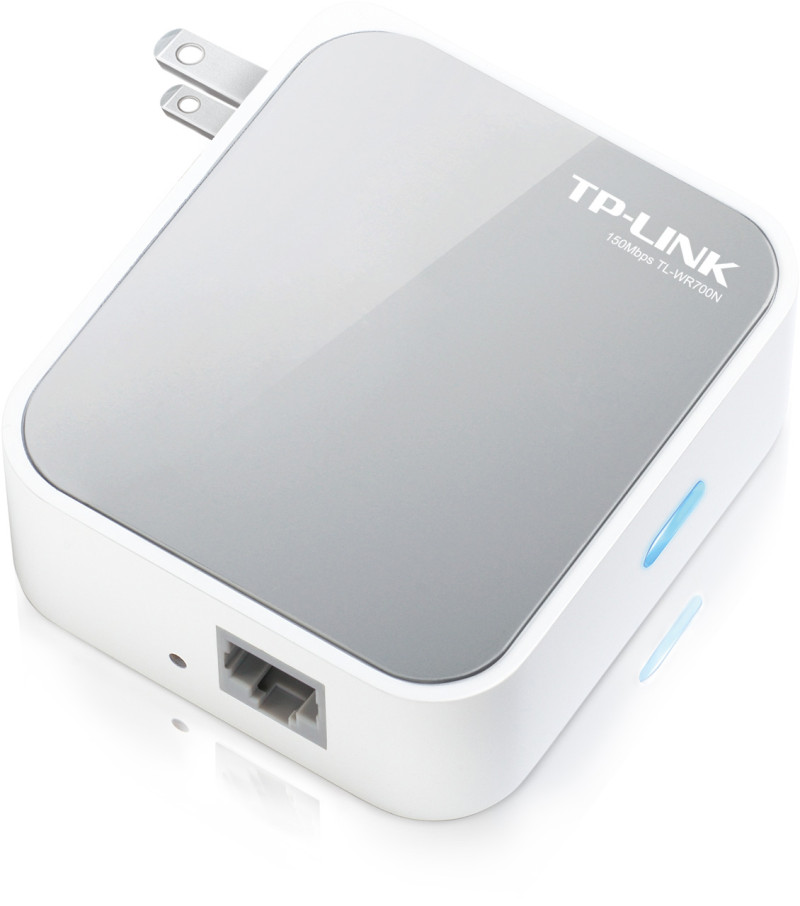
Hard reset TP-LINK TL-WR700N

Power ON the router, use a pin to press and hold the RESET button on the bottom of the router for about 5-6 seconds. Then release the button and wait the Router to reboot to its factory default settings.

To find out your router default username and password continue reading

Hard reset TP-Link TL-WR720N

Power ON the router. Locate the reset button on the back panel – it is labeled WPS/RESET. Press it and hold for at least 5-6 seconds. You should see the System LED blinking faster than usual. When this happens – release the button and wait the router to reboot to its factory default settings. 
PS. The System LED is the second one on the front panel and it looks like a small sun. 

To find out your router default username and password continue reading

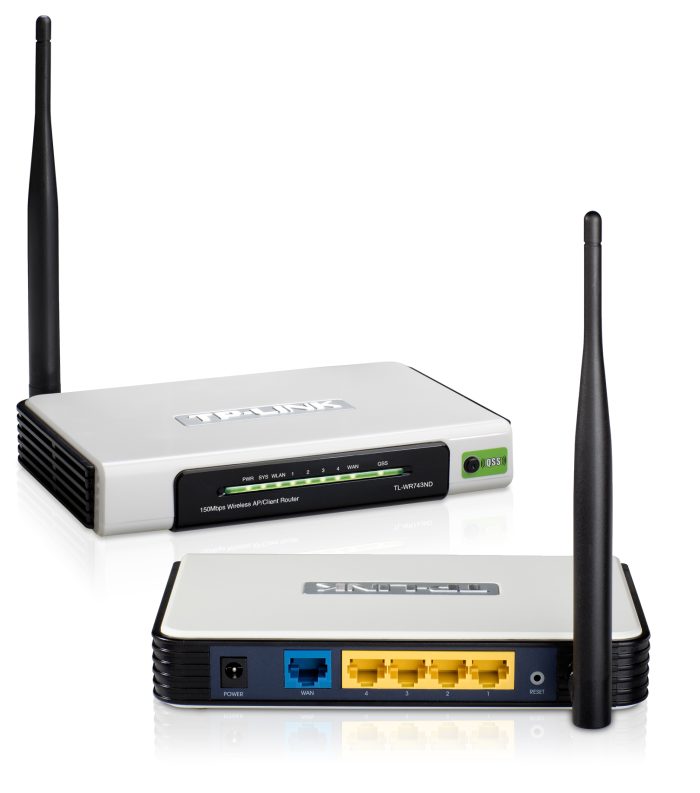
Hard reset TP-Link TL-WR743ND

There are two different versions of this router: Version 1 has a square body with a big black front panel, while Version 2 has rounded corners and just a little black on the front. Good news is they both reset the same way. Find the reset button hole on the back of the device. Use a pin to press inside the hole and hold for about 5 seconds. Watch the SYS LED – when it starts flashing more quickly than before – release. Wait for a minute for the router to reboot. 
PS: V1 – System LED is labeled SYS. V2 – System LED is the one that looks like a small sun
NB: The default ip address are different for V1 and V2

To find out your router default username and password continue reading
Hard reset TP-Link TL-WR741ND

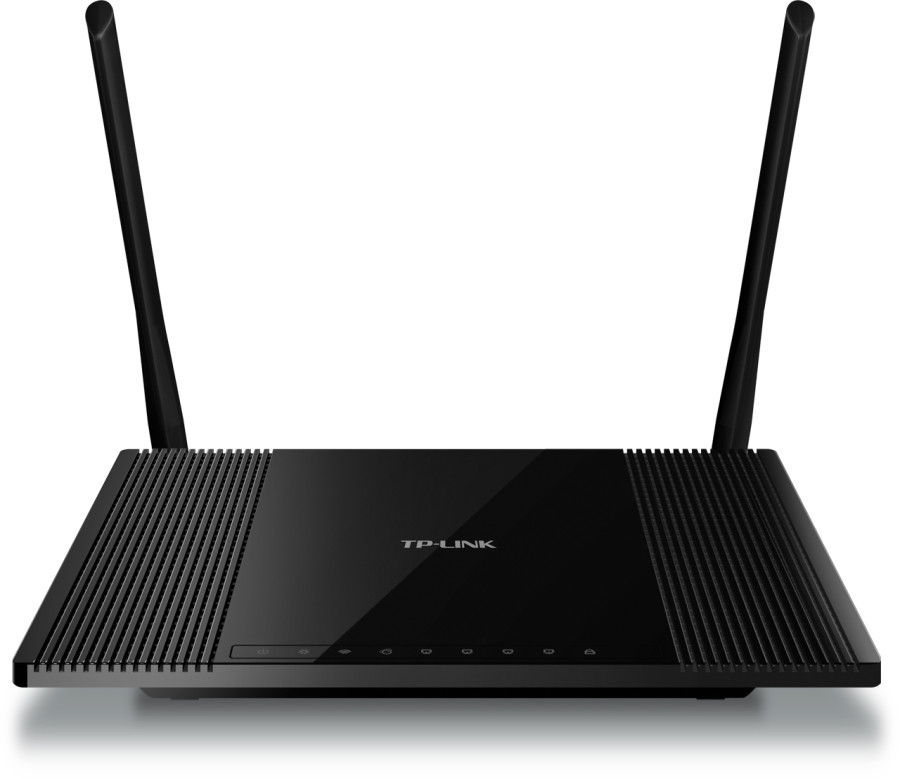
The Reset button is a small hole on the back side of the router. Press in it with a thin object (a paper clip maybe) for five seconds. Then release and wait for the reboot process to finish – up to 1 minute.

To find out your router default username and password continue reading
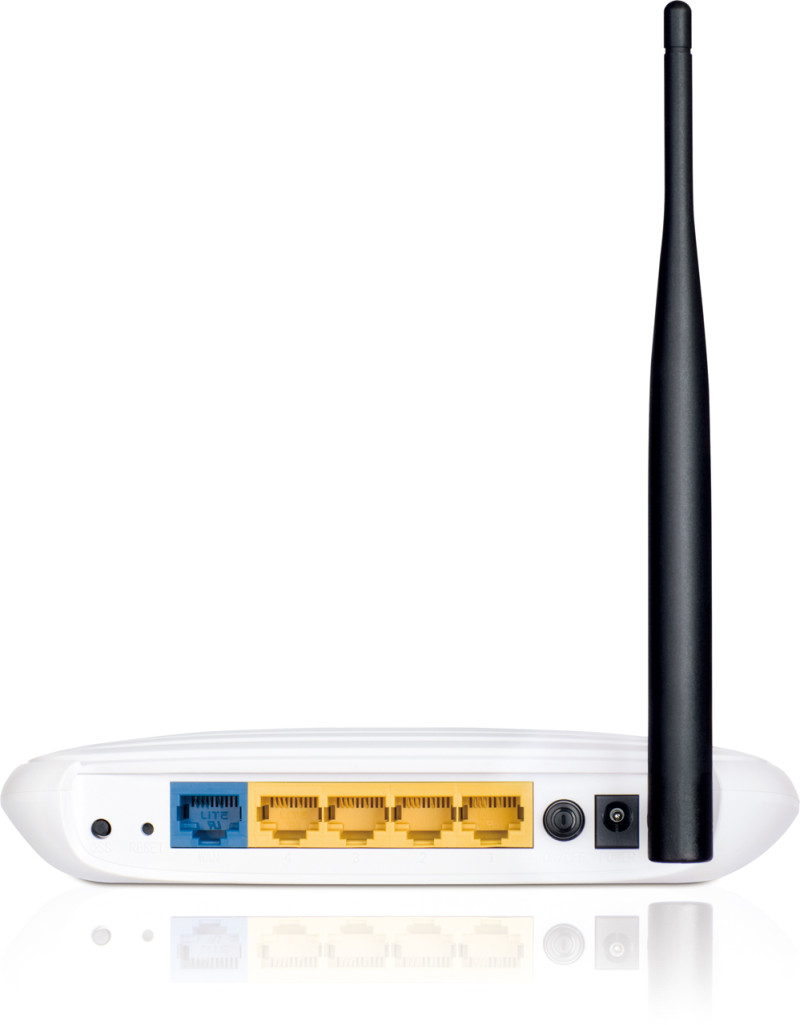
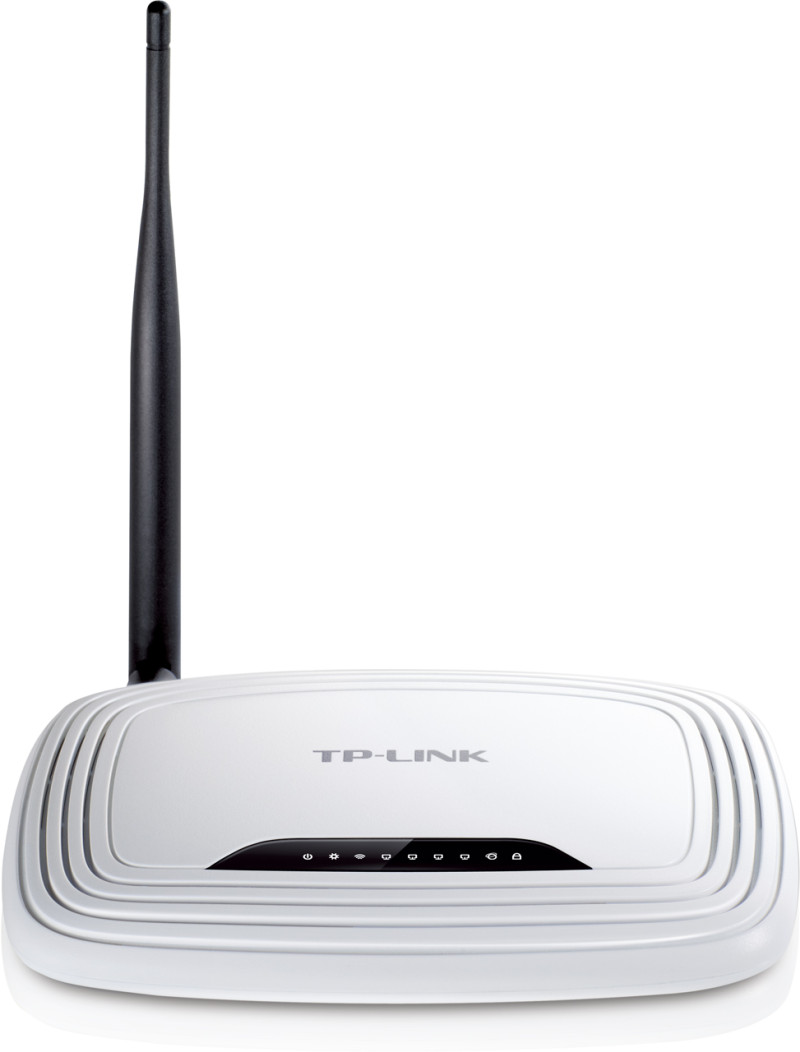
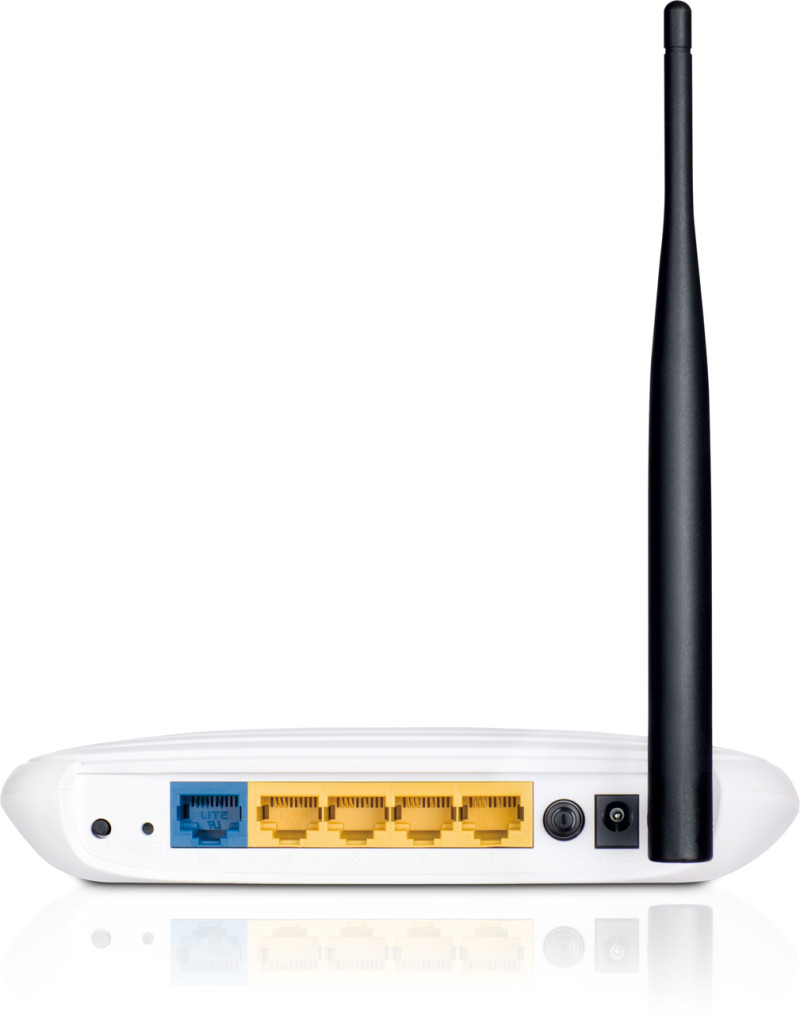
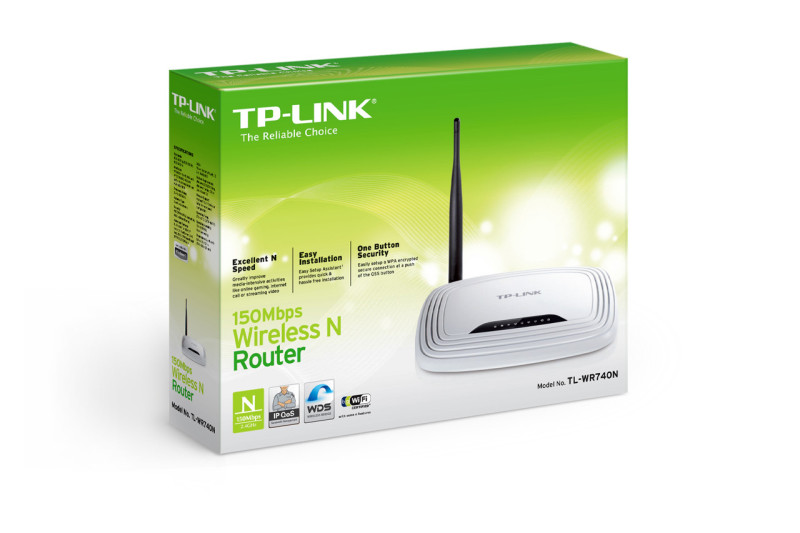
Hard reset TP-Link TL-WR740N

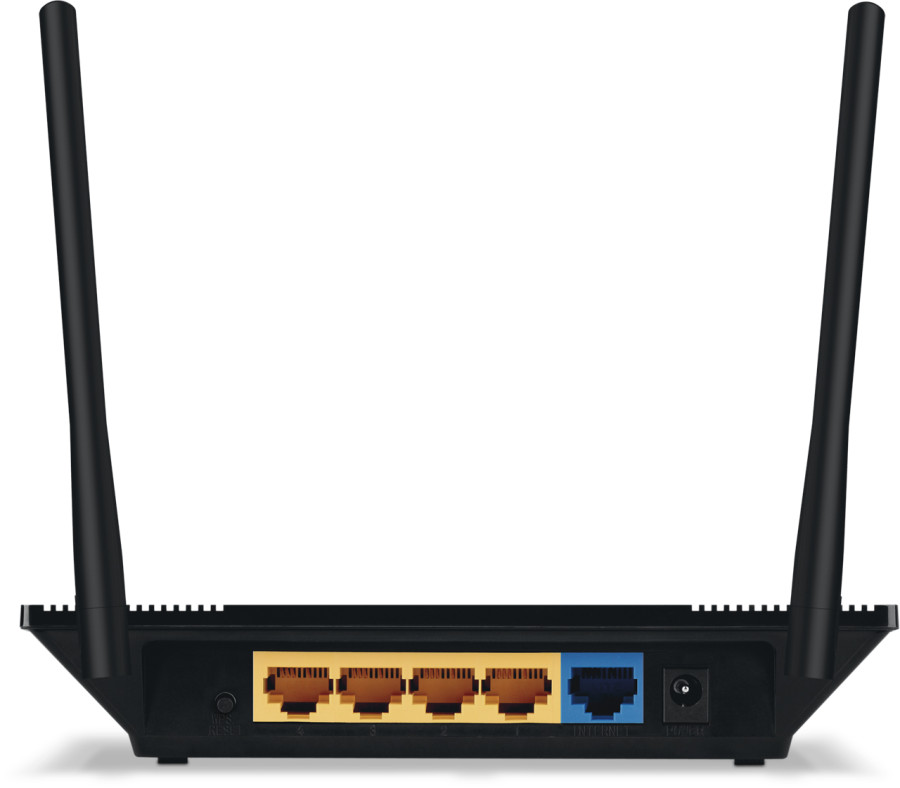
The reset button hole is on the back of the device – it has RESET written under it with hard to notice white letters. Press the Reset button with a thin object (like a paper clip), hold for five seconds and release. Wait for the TP-LINK router to reboot.

To find out your router default username and password continue reading
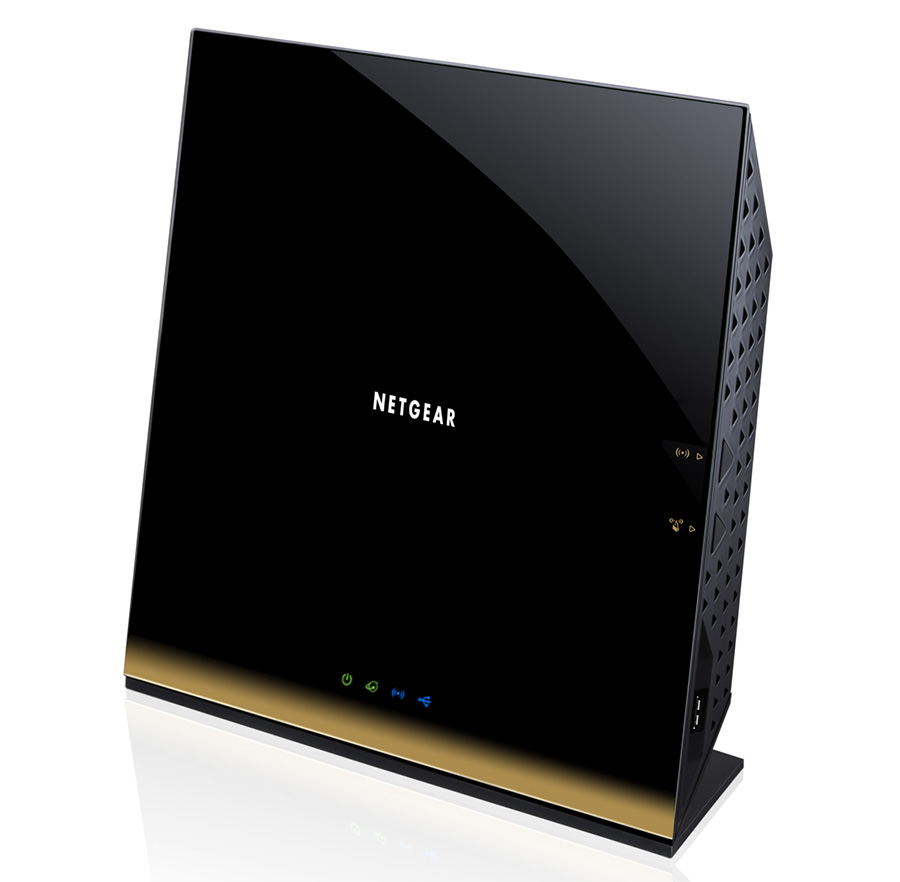
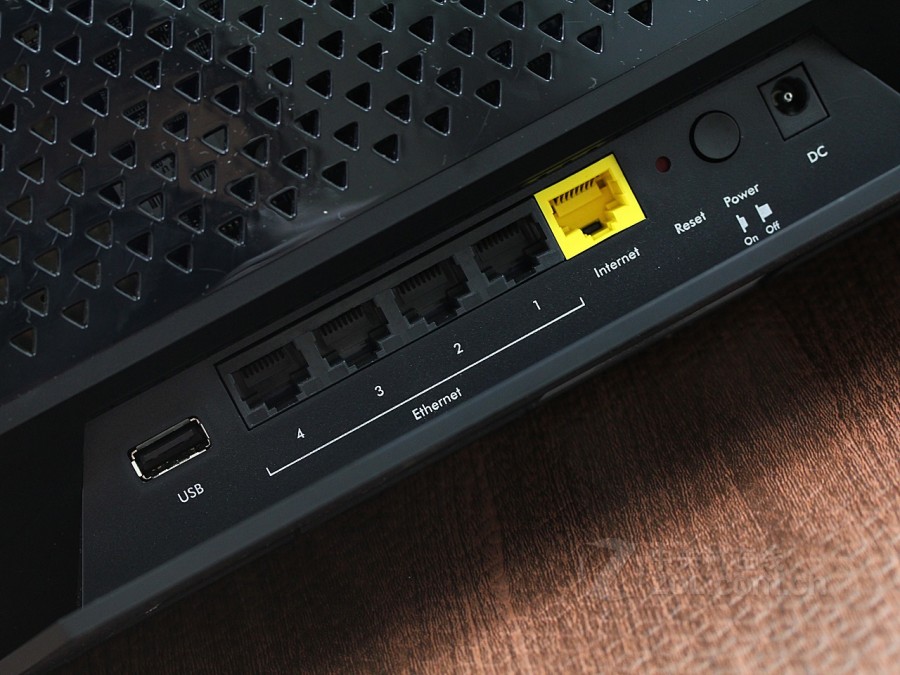
Hard reset NETGEAR R6300

Locate the reset button on the back panel – a small hole to the left of the Power ON/OFF button. Use a thin object like a paper clip to push and hold the button for at least 7 seconds. Release and wait for the router to reboot. IMPORTANT: The default wireless network name (SSID) and password are unique for each of the routers of this model – you can find the name and password on the label on the bottom of your router.

To find out your router default username and password continue reading

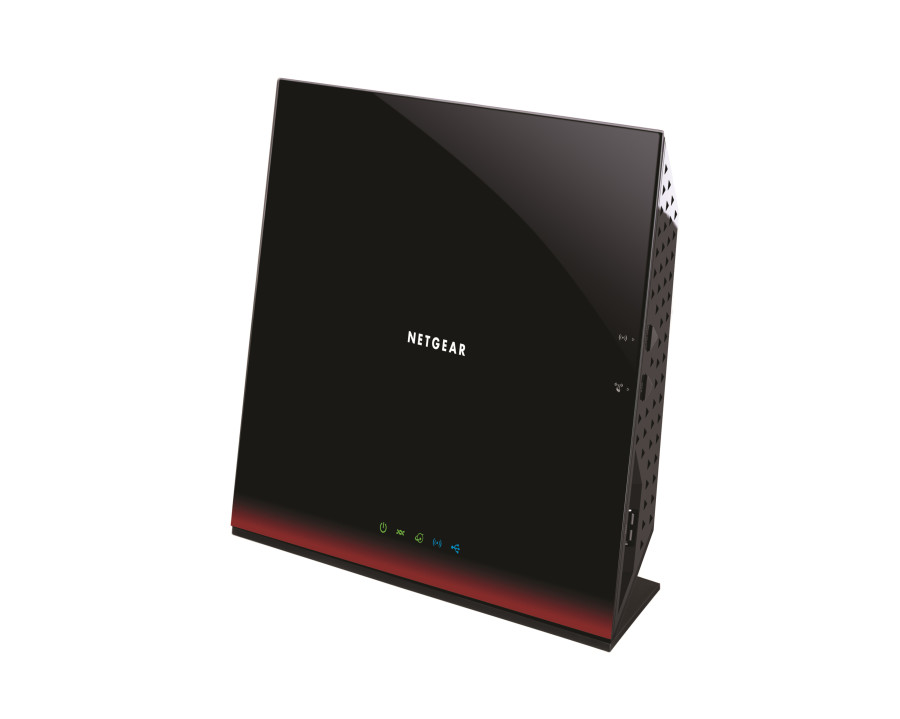
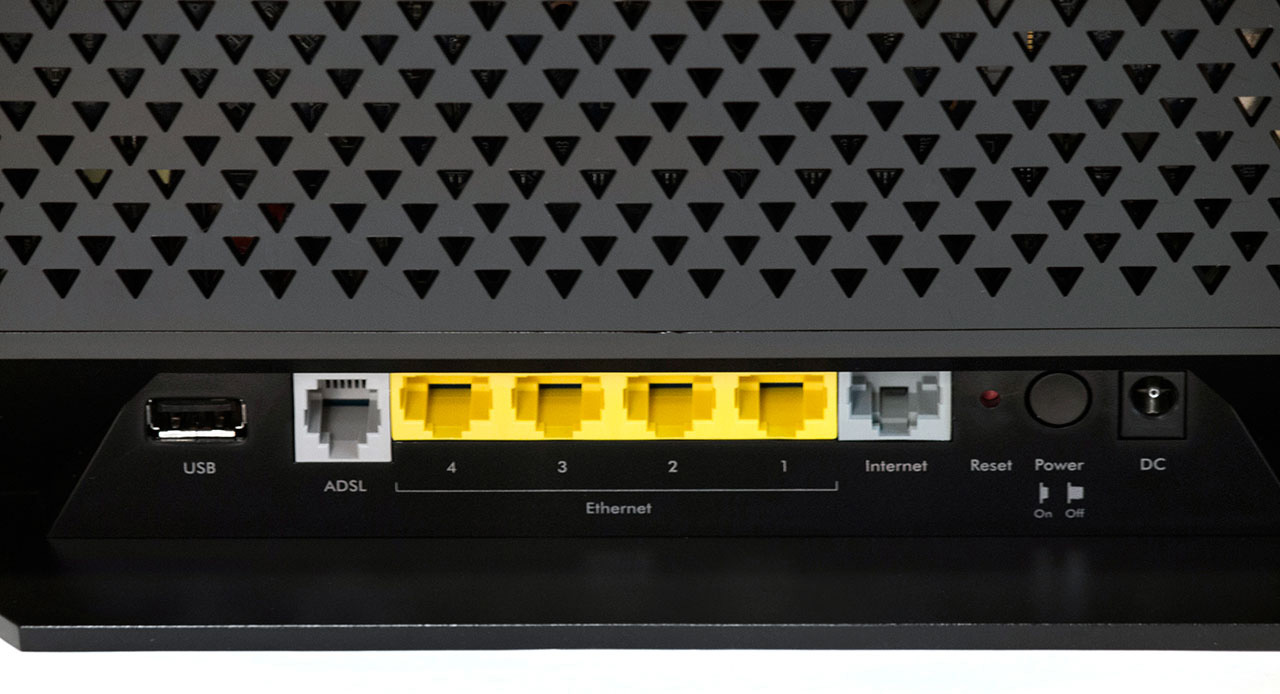
Hard reset NETGEAR D6300

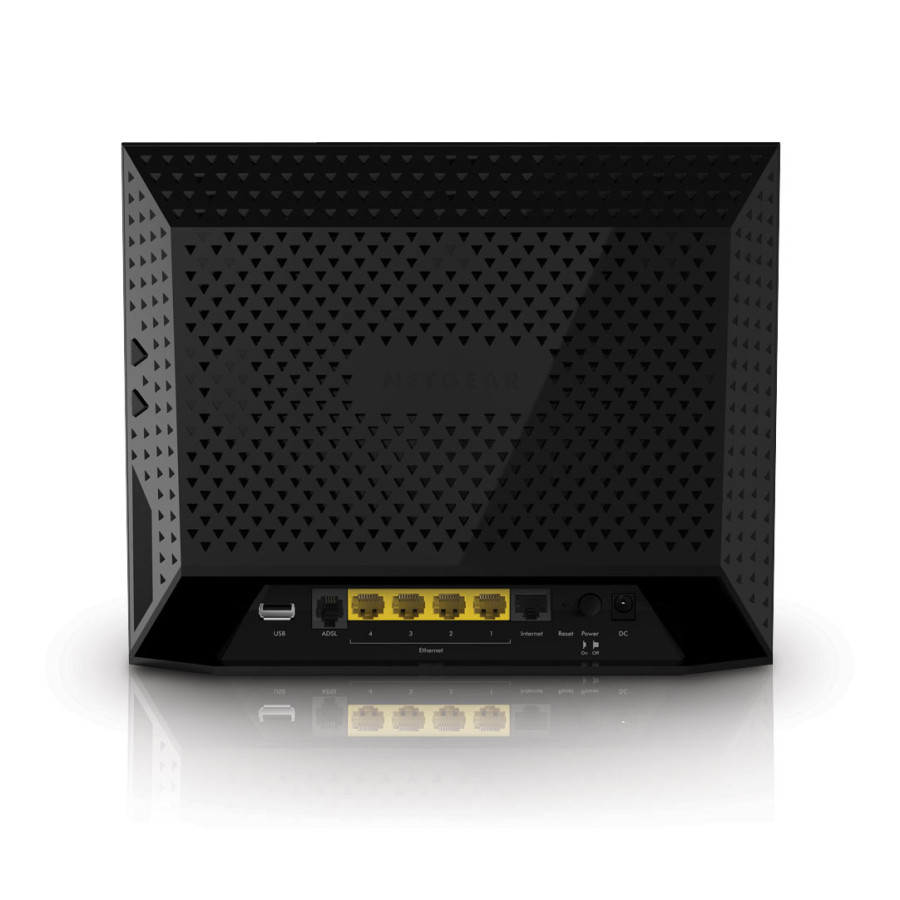
Locate the reset pin hole on the rear panel – to the left of the Power ON/OFF button. Use a paper clip or other thin object to press in the hole and hold for at least 6 seconds. Release. Additional info: the Power LED on the front panel will blink three times in red when you release the reset button. Then it will become green once the default settings are restored.

To find out your router default username and password continue reading