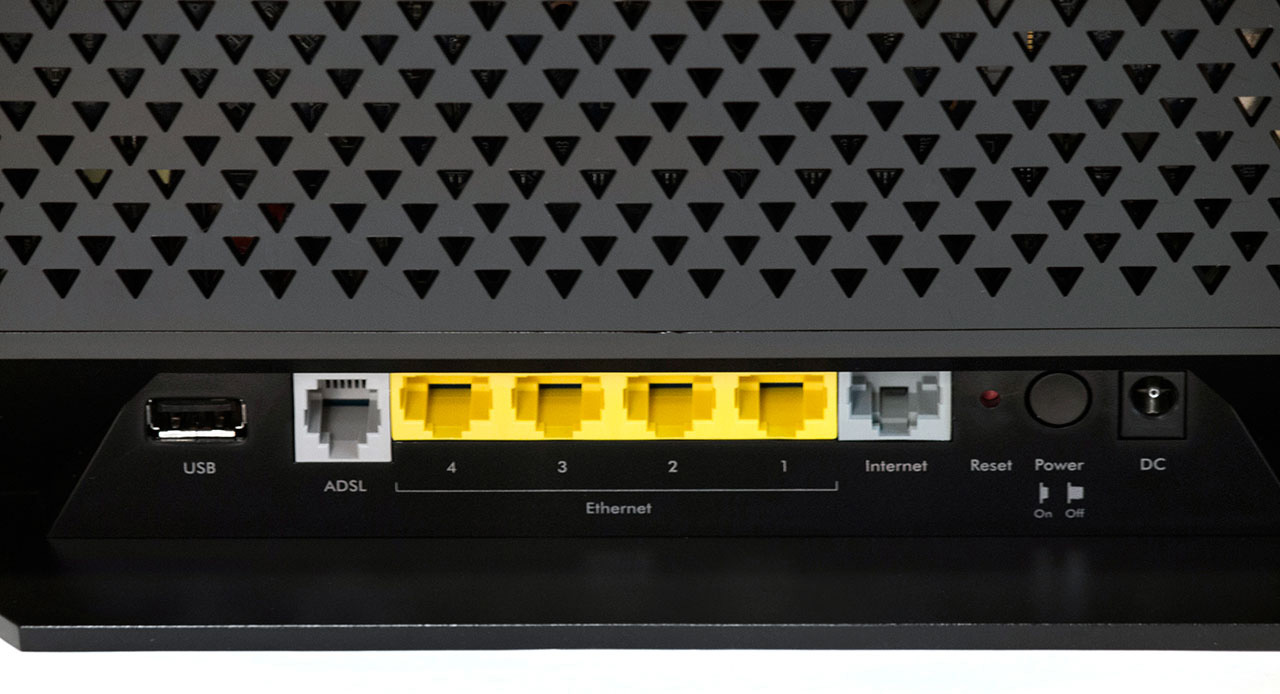
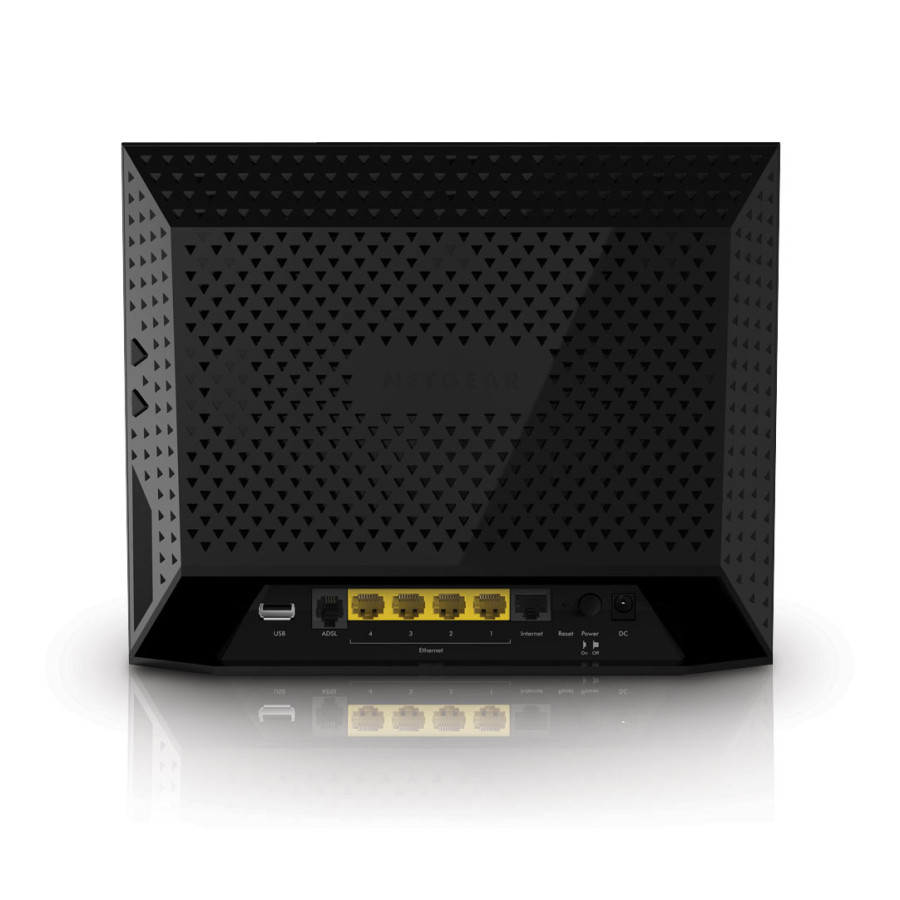
Hard reset NETGEAR D6300

Locate the reset pin hole on the rear panel – to the left of the Power ON/OFF button. Use a paper clip or other thin object to press in the hole and hold for at least 6 seconds. Release. Additional info: the Power LED on the front panel will blink three times in red when you release the reset button. Then it will become green once the default settings are restored.

To find out your router default username and password continue reading
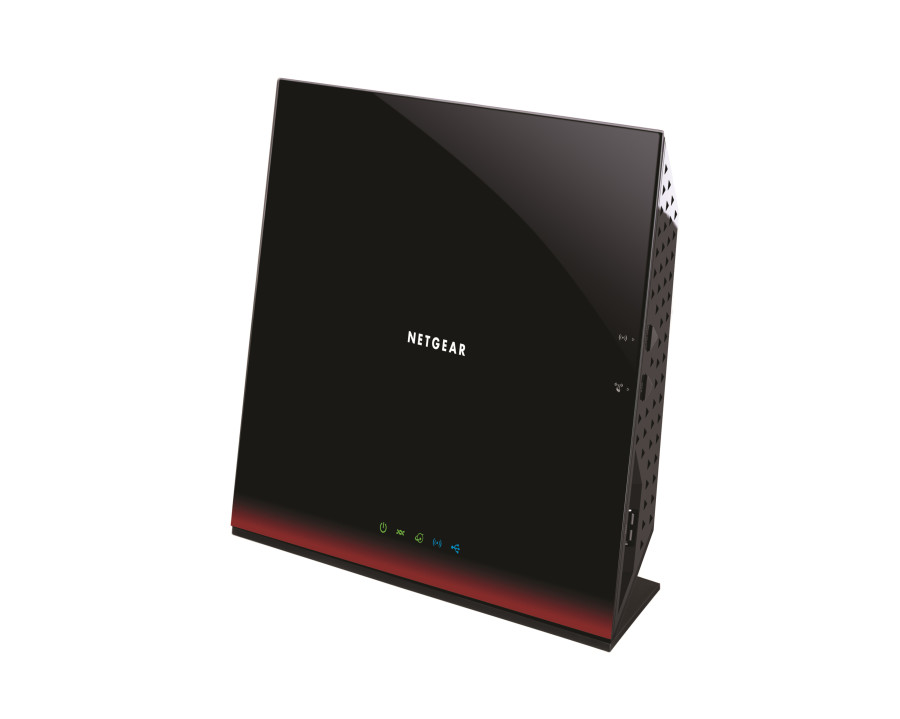
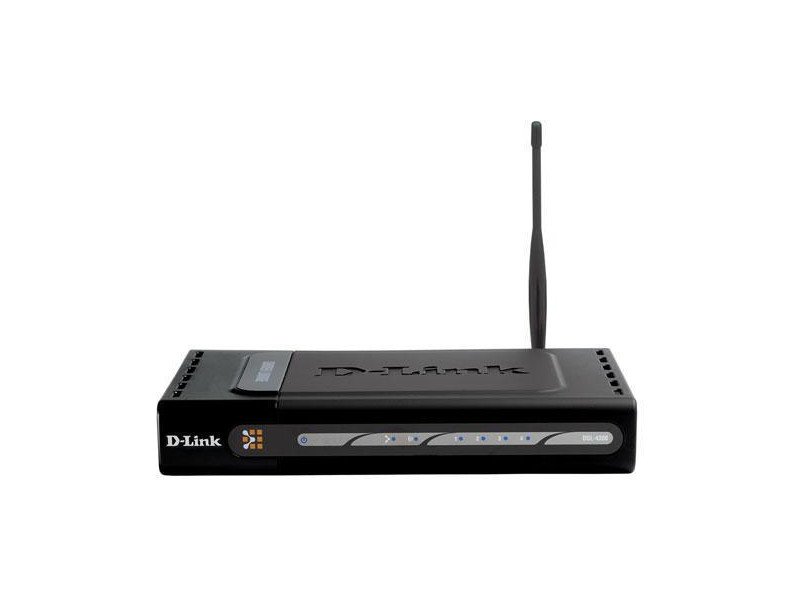
Hard reset D-Link DGL-4300

Power ON the router. Locate the hard reset button hole on the back side. Put a paper clip in the hole and press down. Watch the LEDs on the front panel and release when all of them blink at the same time. Wait for the router to reboot (30sec – 1min).

To find out your router default username and password continue reading
Hard reset D-Link DIR-515

Turn the router ON and locate the reset pin hole on the back panel. Use a paper clip to press in it and hold for 10 seconds. Release. Wait at least 30 seconds before trying to access the router.

To find out your router default username and password continue reading
Hard reset D-Link DIR-501

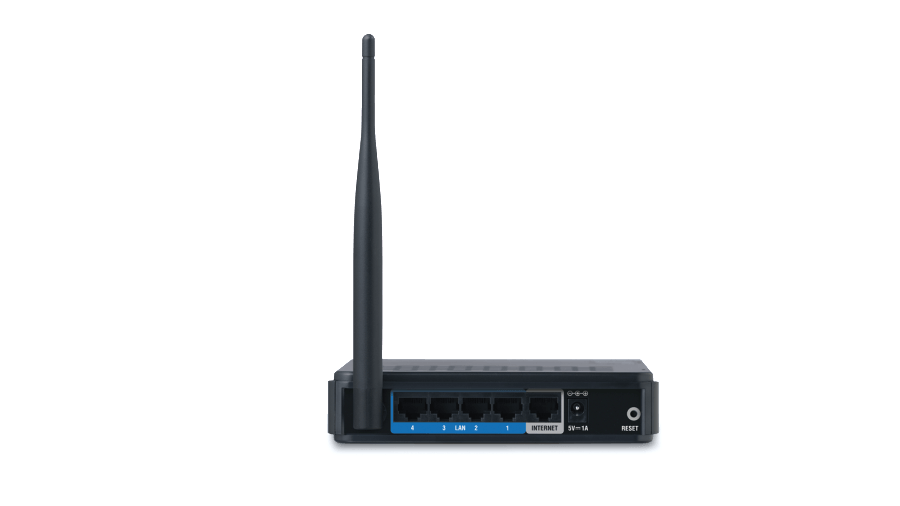
Power ON your router. Locate the reset button hole on the rear panel. Use a paperclip to press the button and hold it down for 10 seconds. Release. Wait for a minute until the reset process has finished.

To find out your router default username and password continue reading
Hard reset D-Link DAP-1560 access point

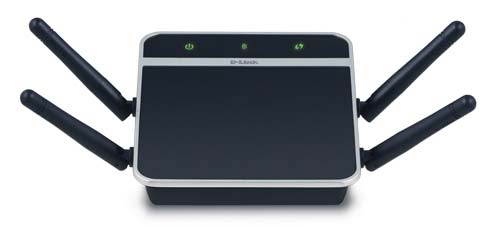
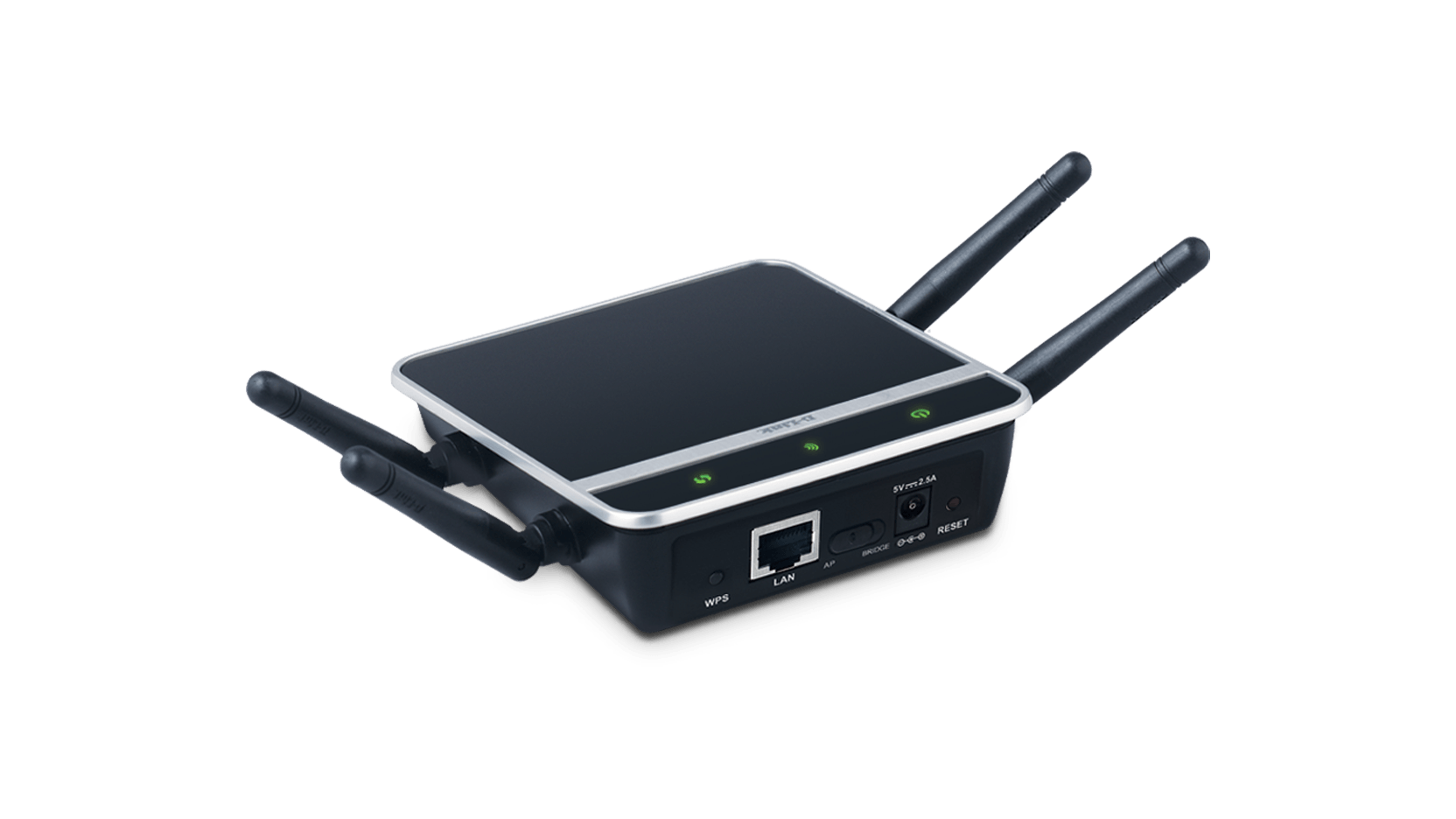
Power ON the access point. The reset button hole is on the back panel. Press in it with a thin object and hold for 10 seconds. Release. Wait for 30sec – 1min before accessing the device.

To find out your router default username and password continue reading
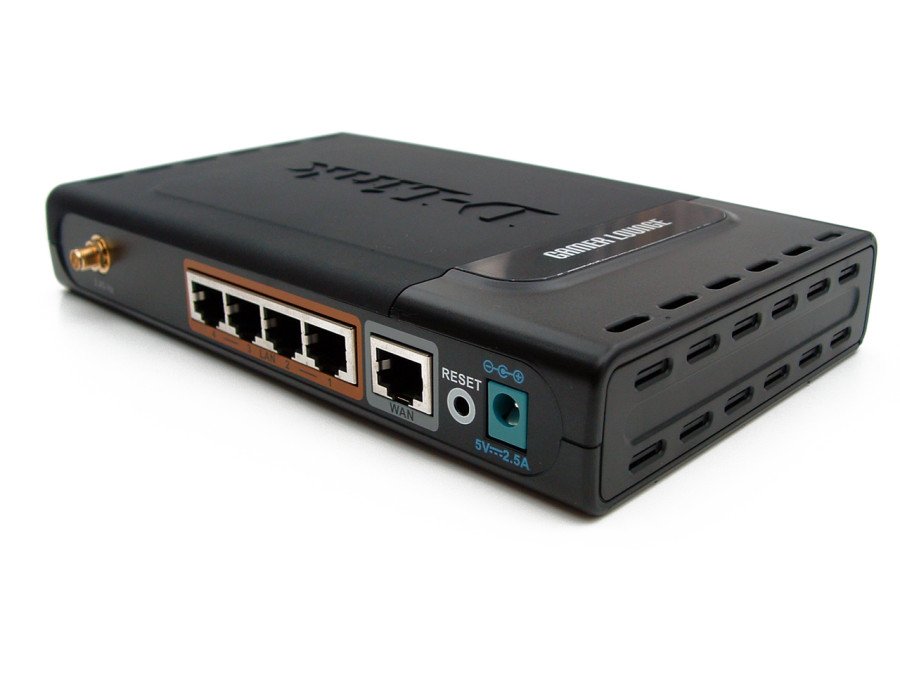
Hard reset D-Link DIR-657

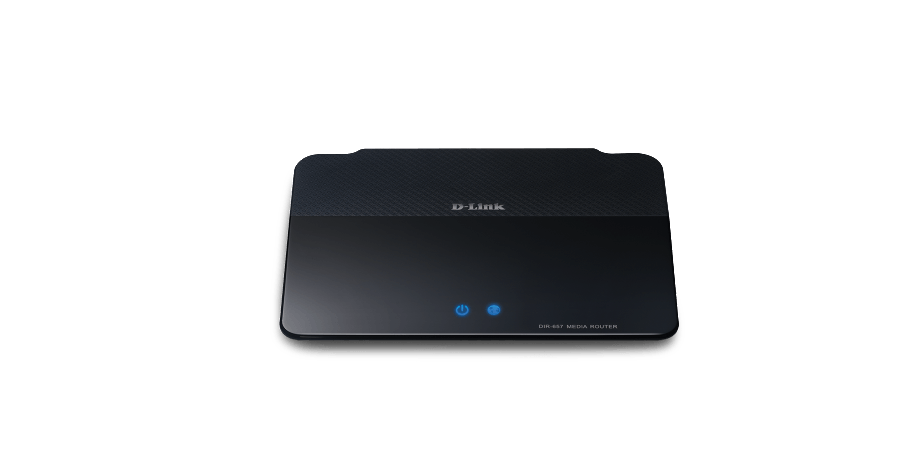
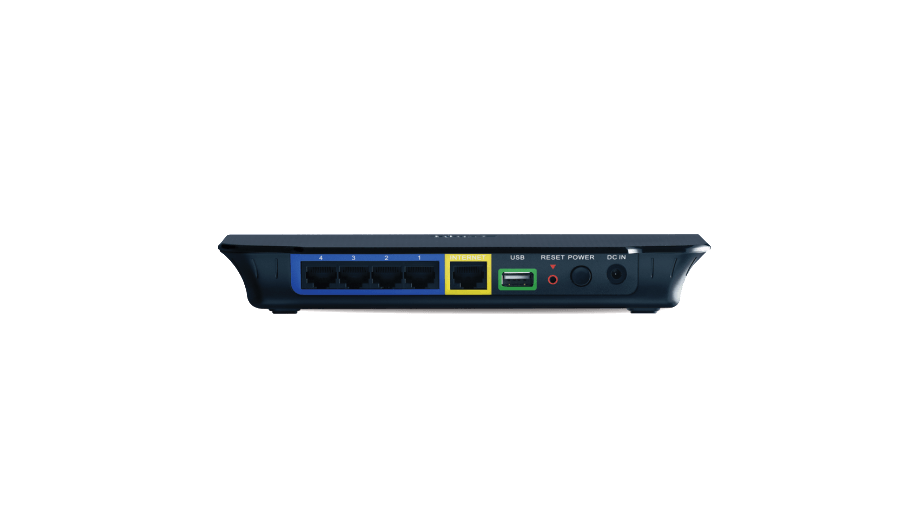
The reset button hole is on the back panel and is marked with red. Press it down with a thin object and hold for 10 seconds. Release. Wait a minute for the router to reboot.

To find out your router default username and password continue reading
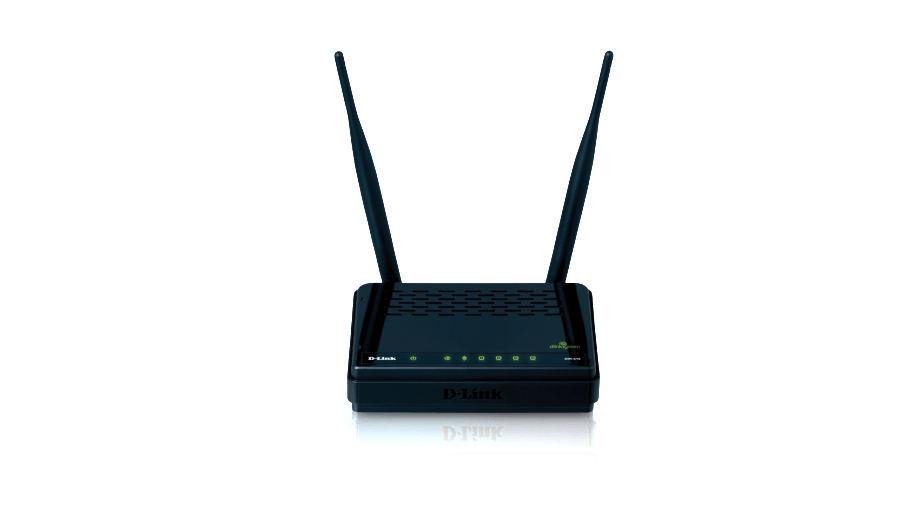
Hard reset D-Link DIR-636L

Locate the reset button hole on the bottom of the device. Use a thin (sharp) object to press and hold the button down for 10 seconds. Wait for the router to reboot.

To find out your router default username and password continue reading
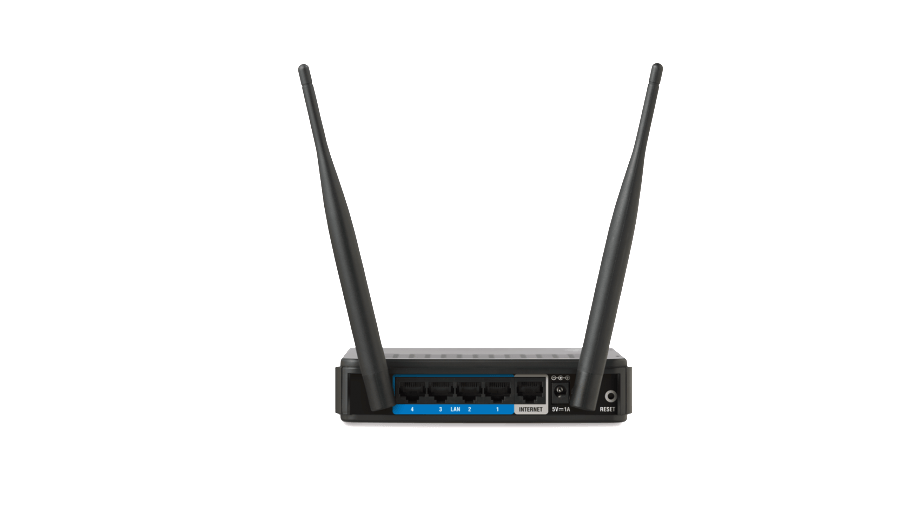
I spilled water on my router – what to do now?

Spilling water on your electronic devices is always a very unfortunate event. However, if you act very quickly you have a chance to save the device. When I say quickly I mean right away. I am going to talk about routers here, but the same goes for modems and switches. After spilling water on your […]

Hard reset TP-LINK AC1750

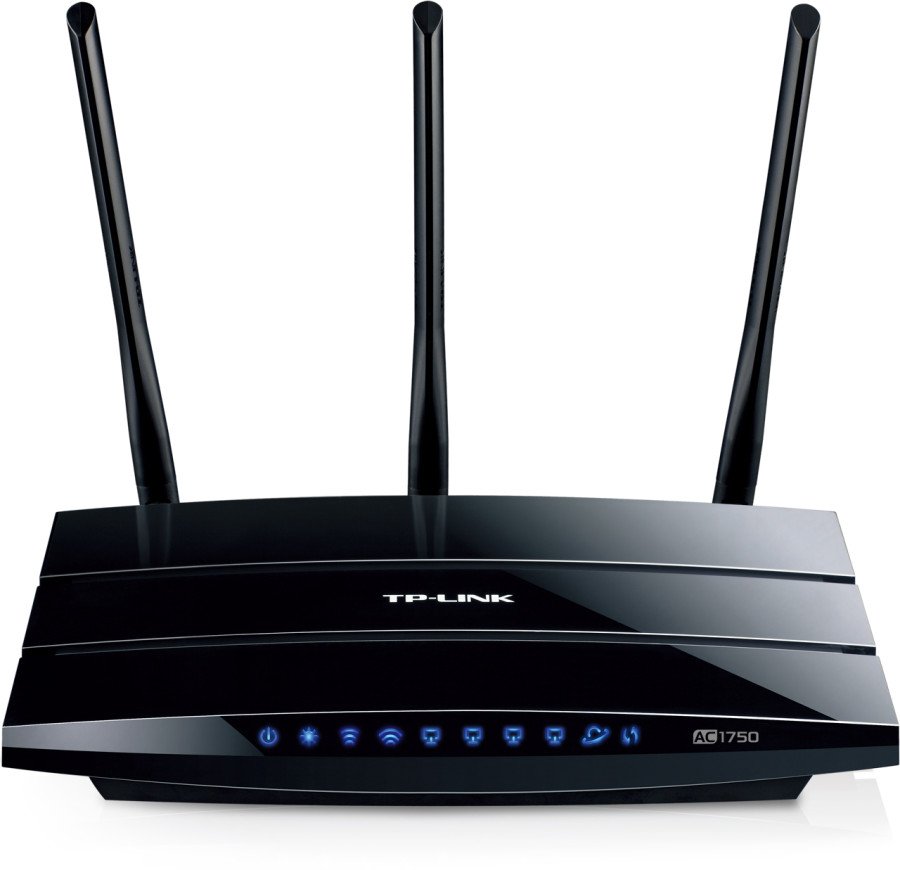
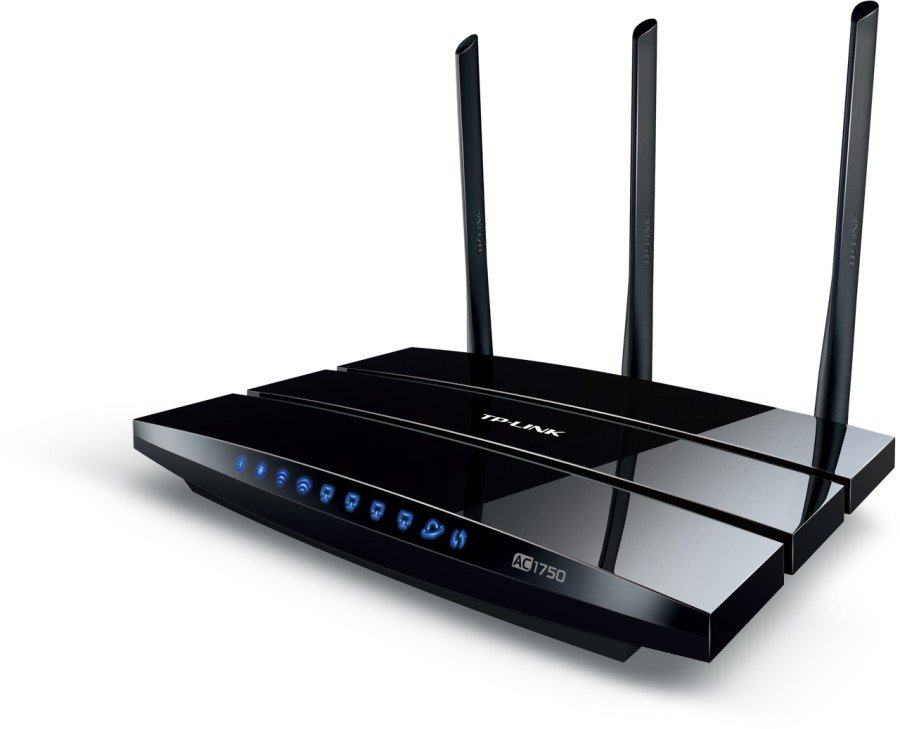
Locate the WPS/Reset button at the back of the router. With the device powered on press and hold the button for approximately 8 seconds(until SYS LED starts flashing quickly) and release the button.

To find out your router default username and password continue reading
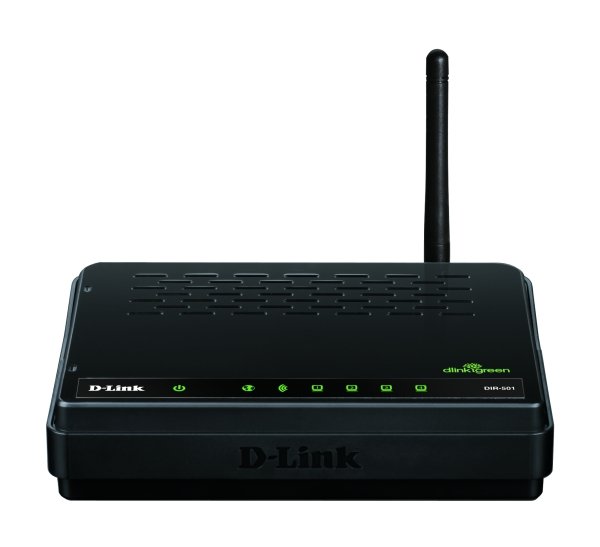
Hard reset Linksys EA6700

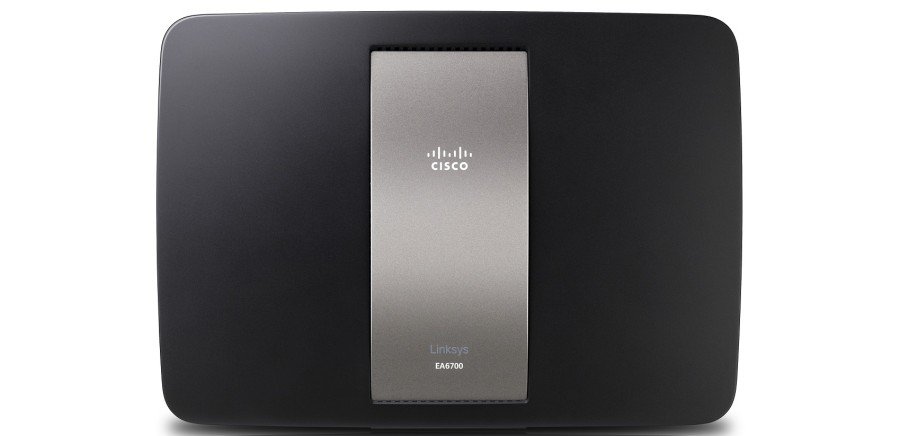
Locate the reset button on the back panel of the router. Use a paperclip to press and hold the button for approximately ten seconds then release.

To find out your router default username and password continue reading